Appearance
Managing Bollards
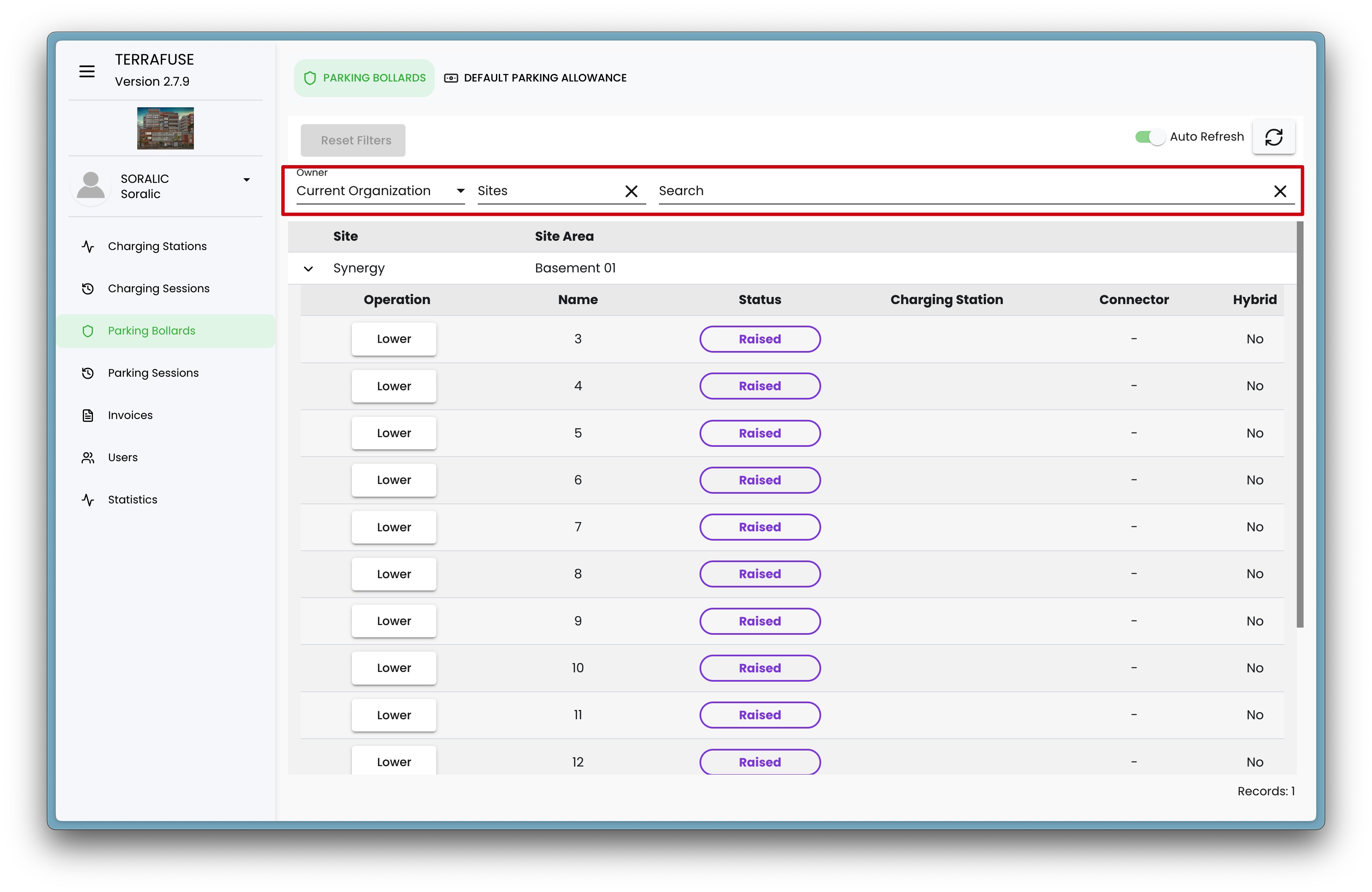
After logging into the system, managers can navigate to the Parking Bollards section from the side menu to manage bollards associated with their assigned sites (Figure 5.2.1).
Viewing Bollards by Client
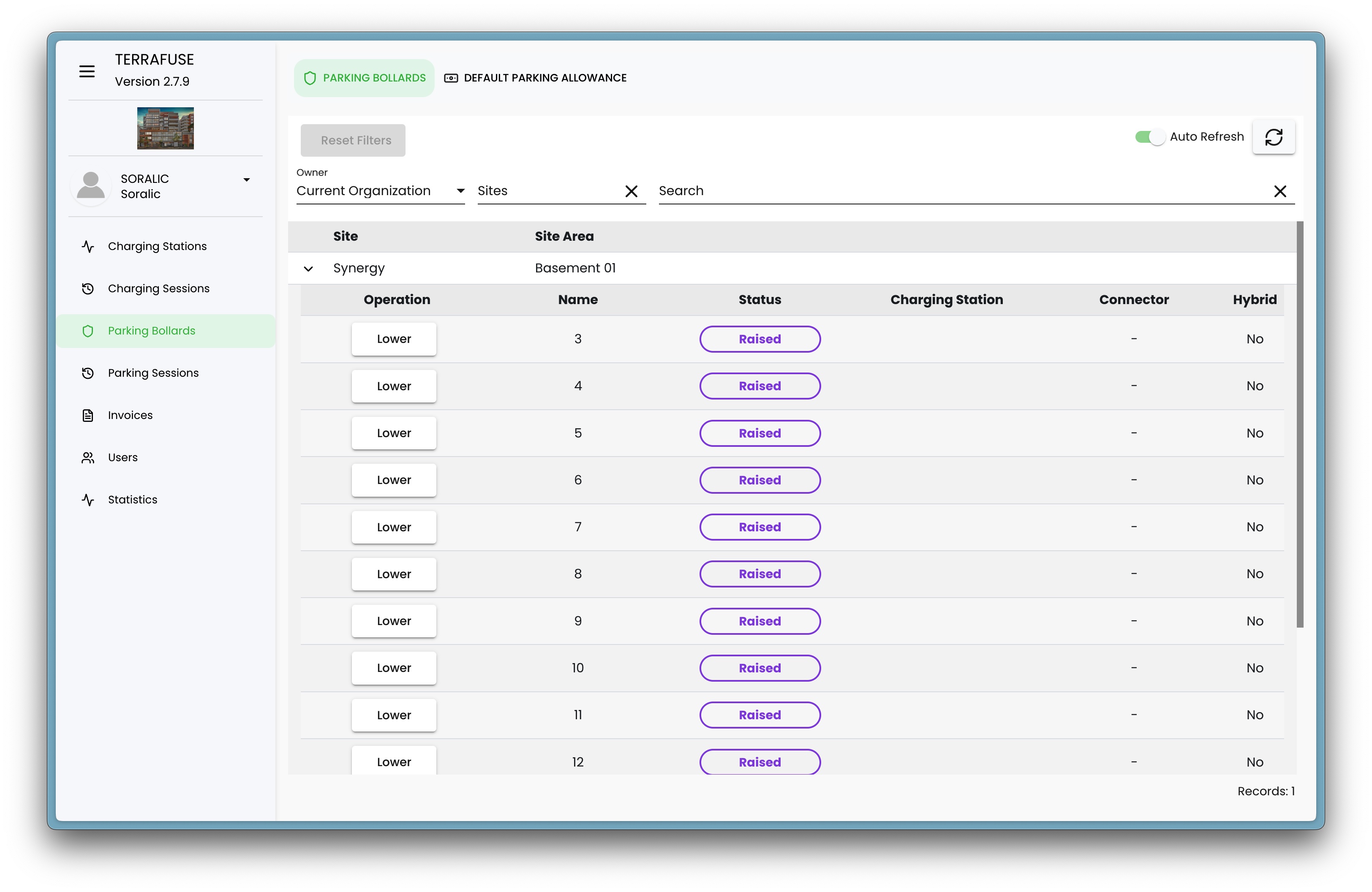
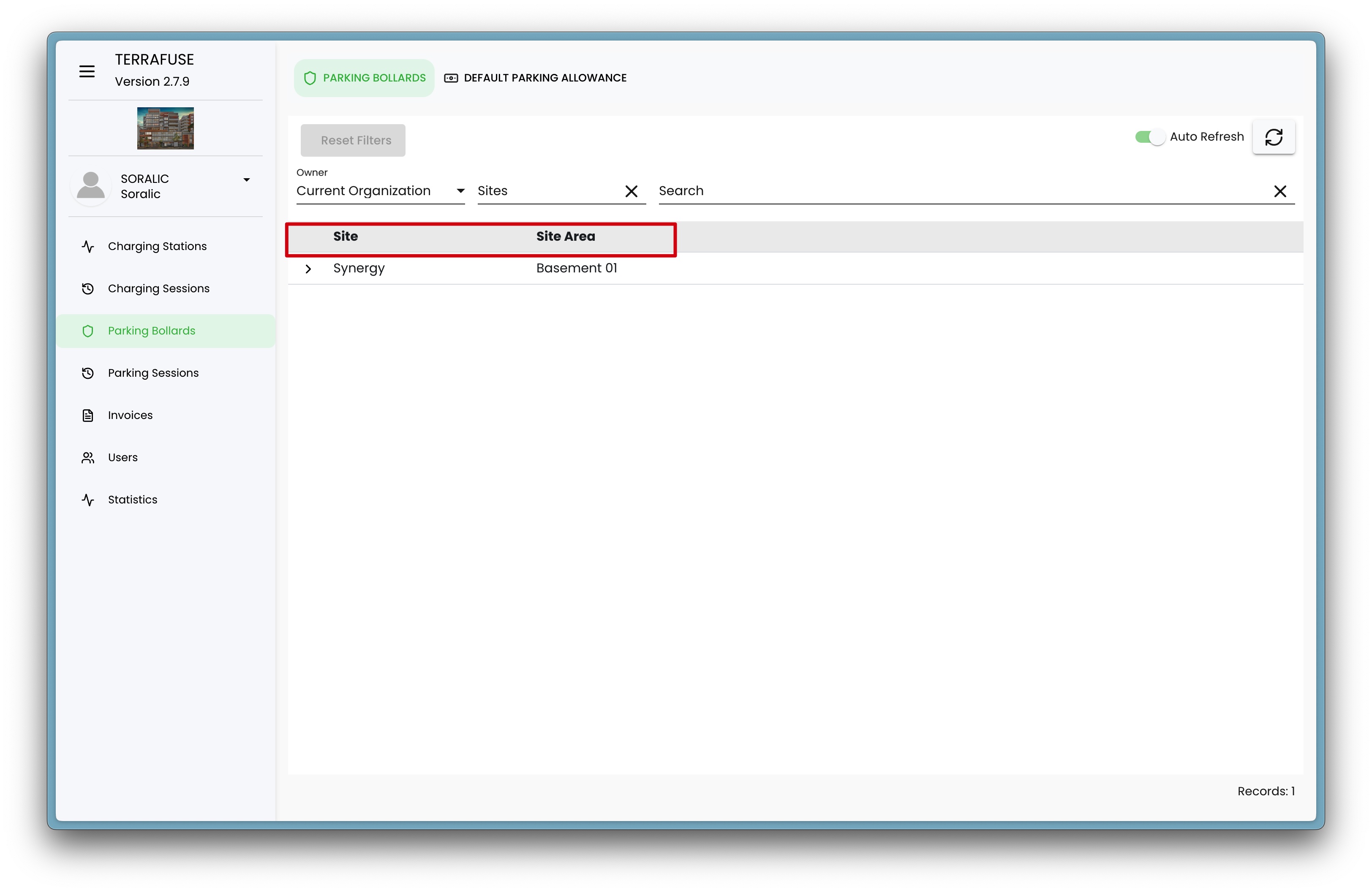
Clicking on a Site row expands the view to show detailed information about the client and its associated bollards (Figure 5.2.2).
Site-Level Details
| Field | Description |
|---|---|
| Site | Name of the site where the bollards are located |
| Site Area | Specific area within the site |
Viewing Individual Bollard Details
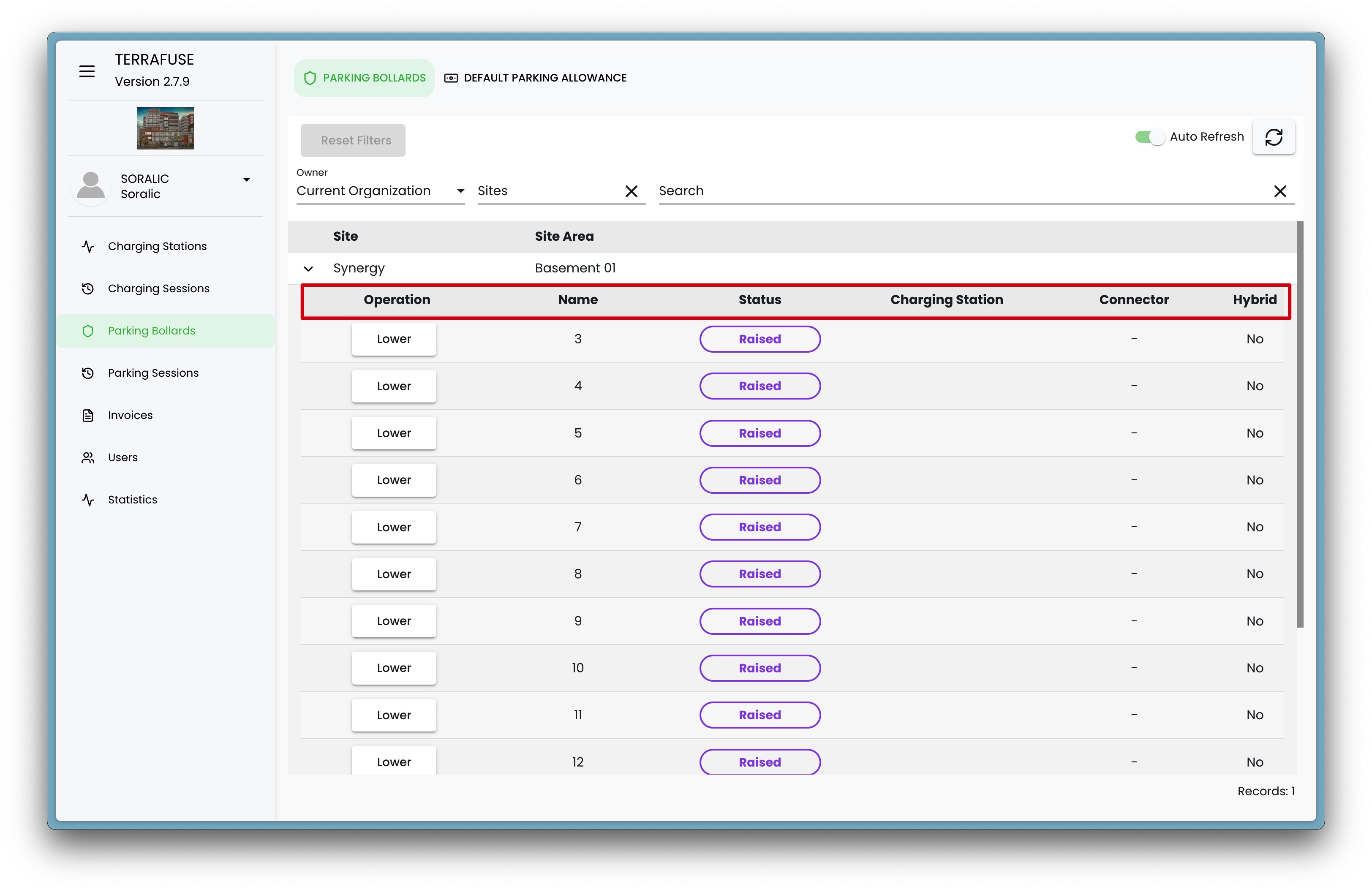
Expanding the site row further reveals each associated bollard (Figure 5.2.3).
Bollard-Level Details
| Field | Description |
|---|---|
| Operation | Option to manually lower/raise the bollard |
| Name | Label/name of the bollard |
| Status | Shows the current status of the bollard. Possible statuses include: Lowered – Bollard is lowered, allowing access. Raised – Bollard is raised, blocking access. Disconnected – No response from the bollard (offline or unreachable). Obstruction – Bollard attempted to raise but was blocked by an object, so it lowered again. Intermediate – Bollard has been manually forced down. Moving – Bollard is currently in the process of raising or lowering. |
| Charging Station | Indicates if the parking bay has a charging station. |
| Connector | Connector label for the charging station. |
| Hybrid | Indicates if the parking spot is hybrid (shared with EV charging station) |
Important
Strata Managers do not have permission to add or edit bollards in the system. They can only view the current status and, when necessary, raise or lower a bollard.
Search and Filtering
To efficiently locate records:
- Use the search bar to find specific bollards (Figure 5.2.4).
- Apply filters based on Organization and Site.