Appearance
Managing Charging Stations
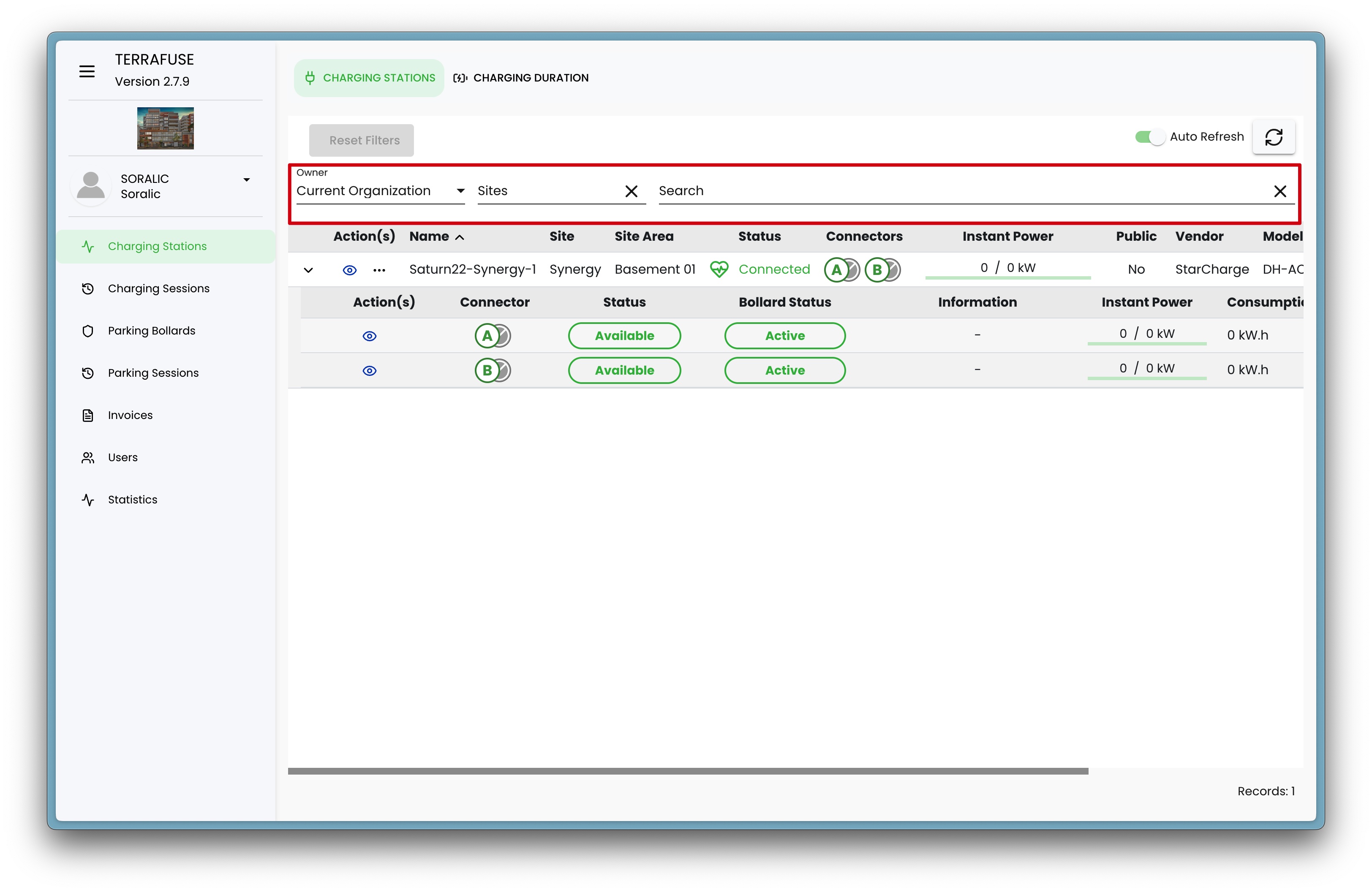
Managers can monitor and manage the status of charging stations from the Charging Stations page, as shown in Figure 4.1.1.
This page shows important details for each charging station and its connectors.
Station-Level Details
These details apply to the entire charging station (Figure 4.1.2 ).
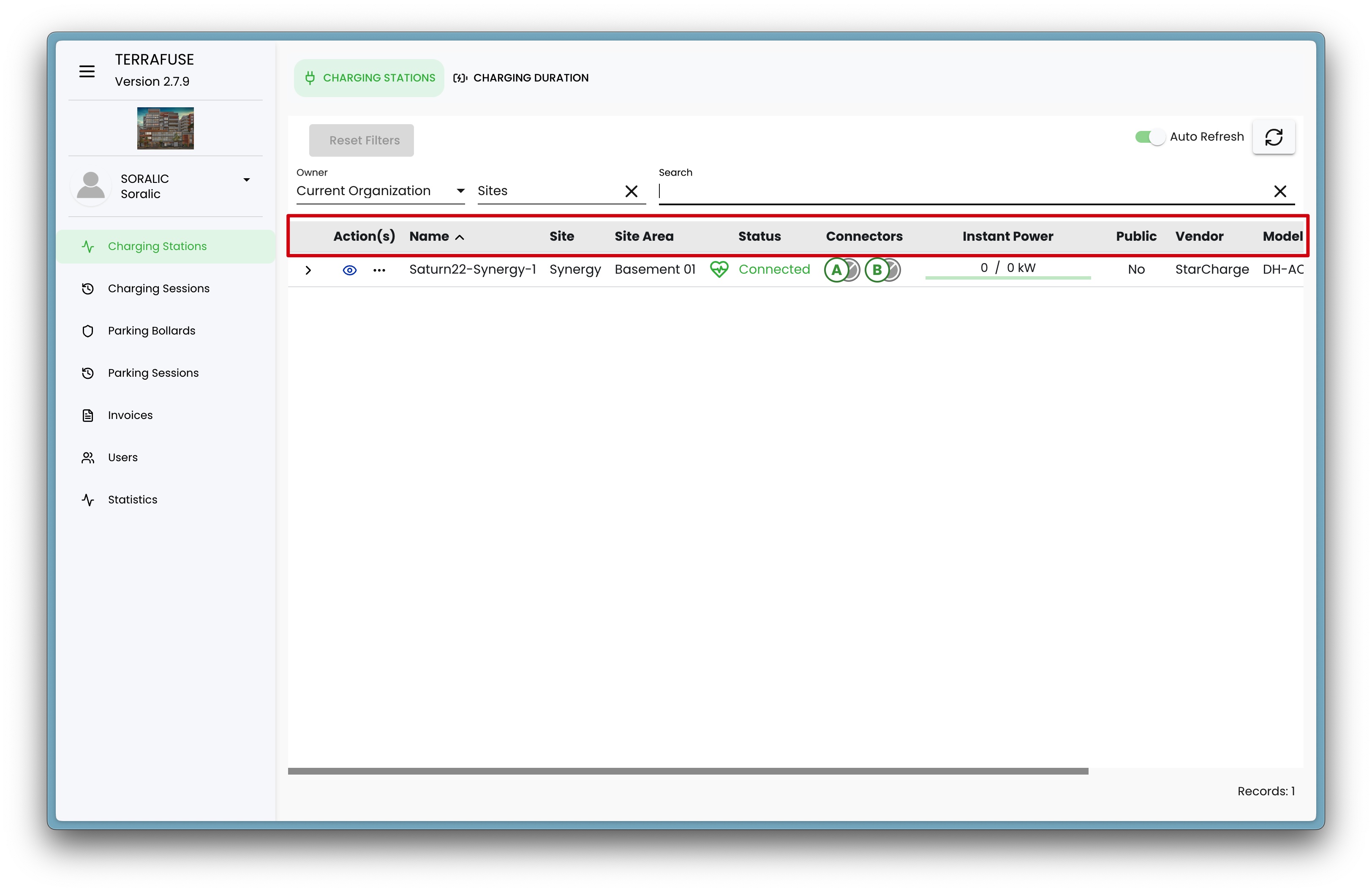
| Field | Description |
|---|---|
| Actions | Includes viewing charging station parameters and more (Refer to Figure 4.1.3 and 4.1.4). |
| Name | The name of the charging station. |
| Site | The site where the station is located. |
| Site Area | The specific area within the site where the station is installed. |
| Status | The current operational state of the station. |
| Connectors | Number of connectors the station has. |
| Instant Power | Real-time power usage. |
| Public | Whether the station is available for public use. |
| Vendor | The company that made the charging station. |
| Model | The model name or number of the charging station. |
| Firmware Version | The installed firmware version. |
| OCPP | The Open Charge Point Protocol version used by the station. |
Station-Level Actions
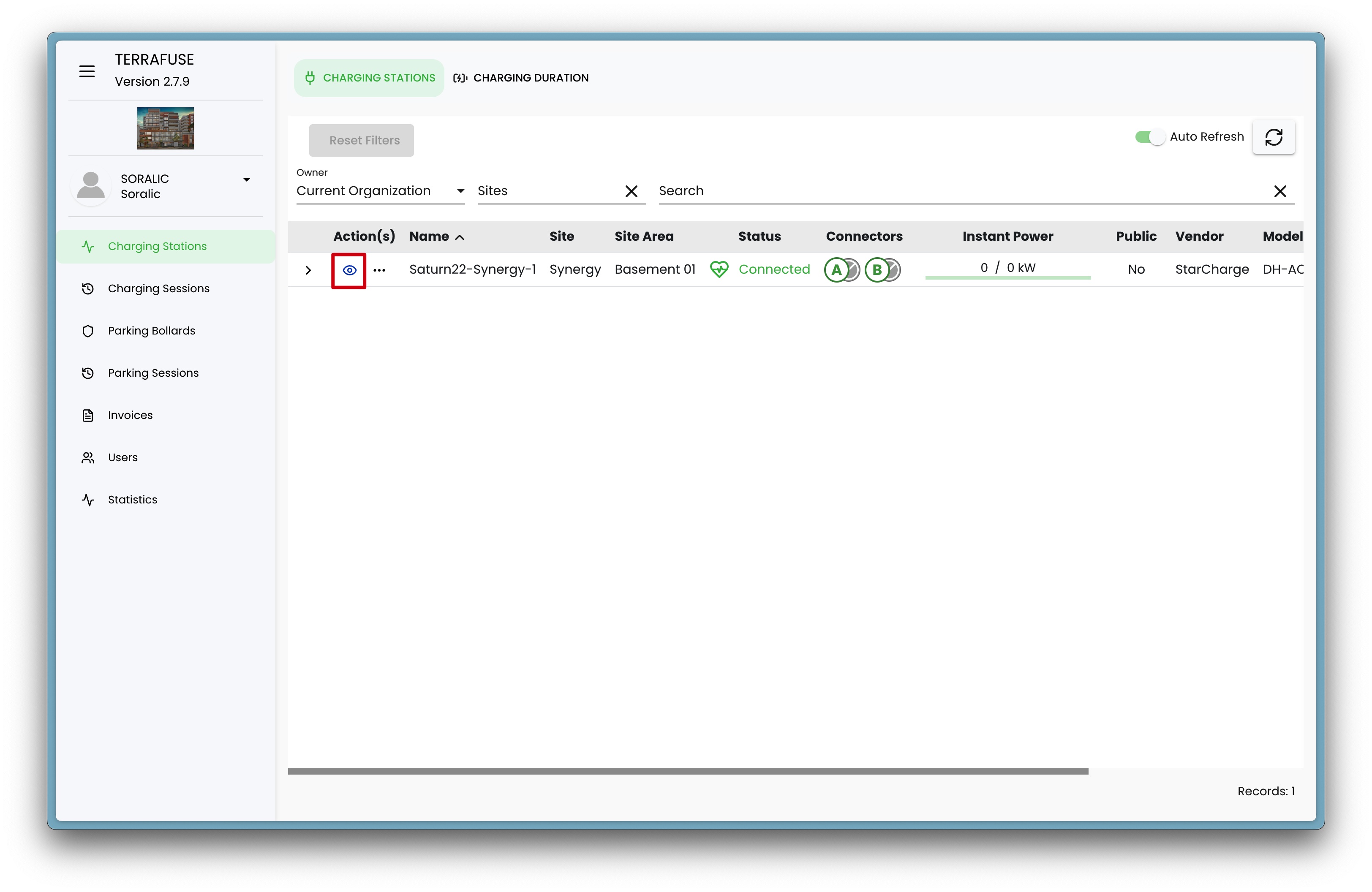
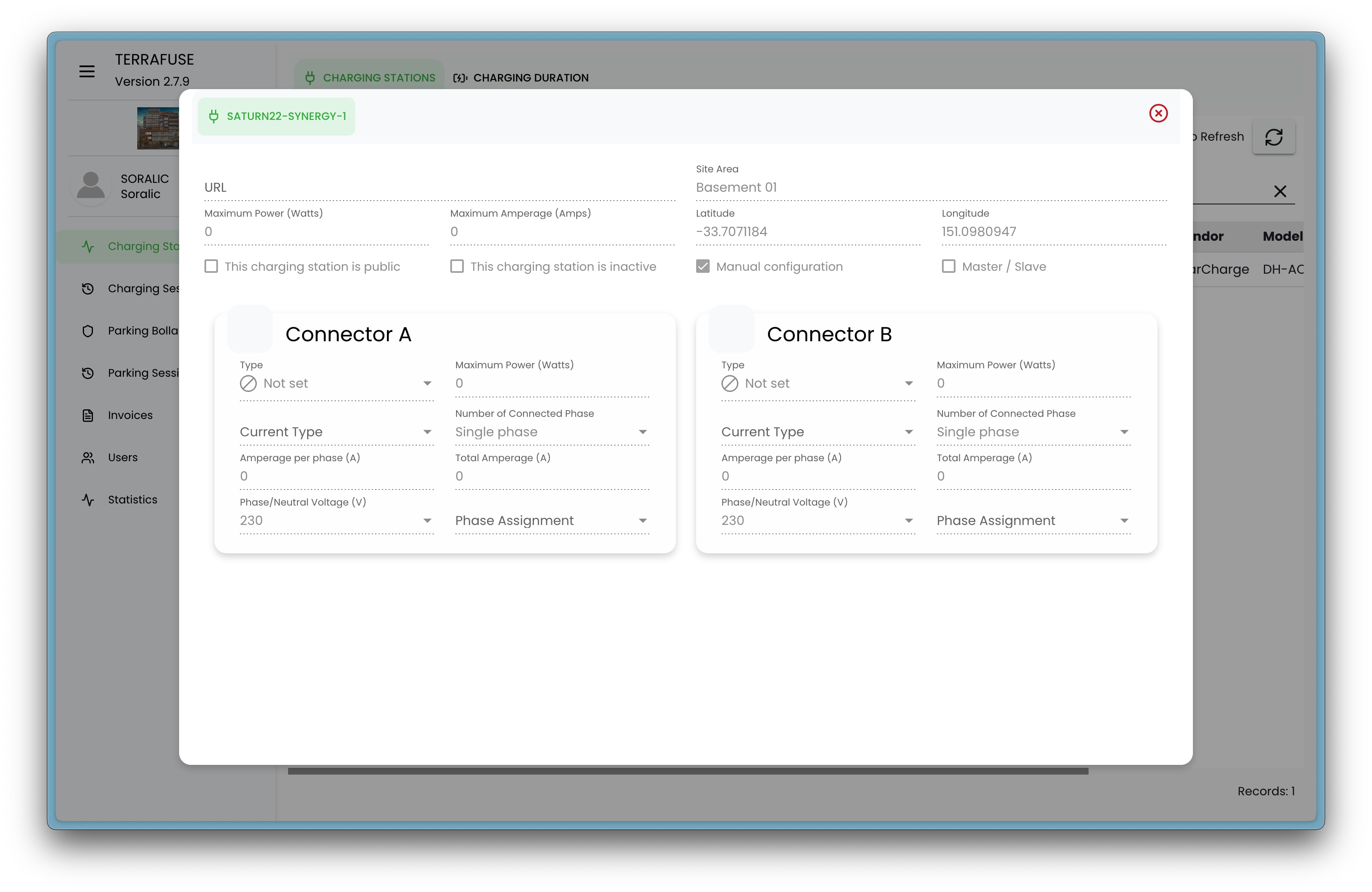
- View : When you click on the view button (Figure 4.1.3) a tab opens that shows the station’s settings (set by the admin) (Figure 4.1.4). Strata managers can only view these settings, not edit them.
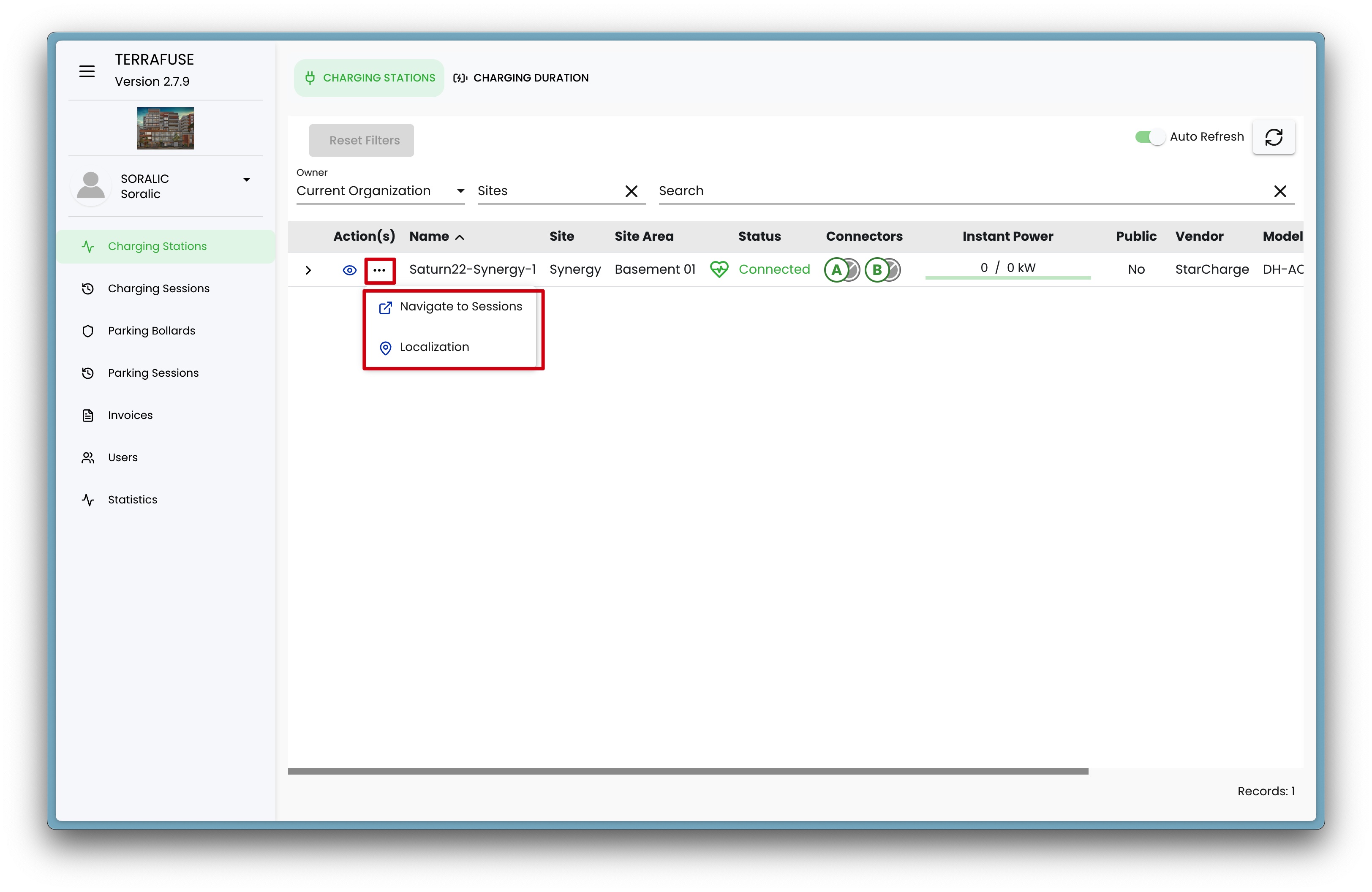
- More : Extra options:
- Navigate to Sessions – Opens the charging sessions page.
- Localization – Shows the station’s exact location on a map.
Connector-Level Details
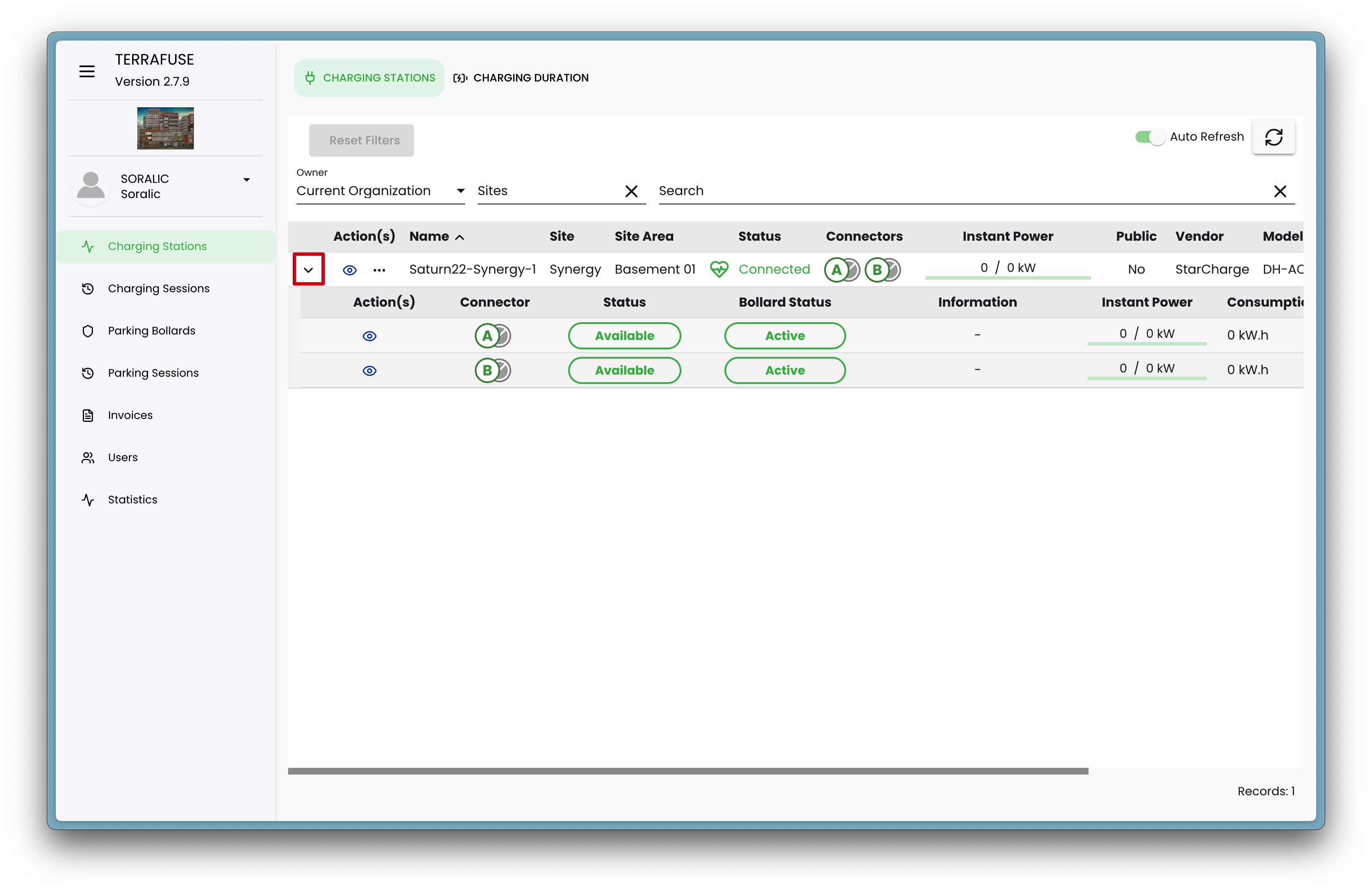
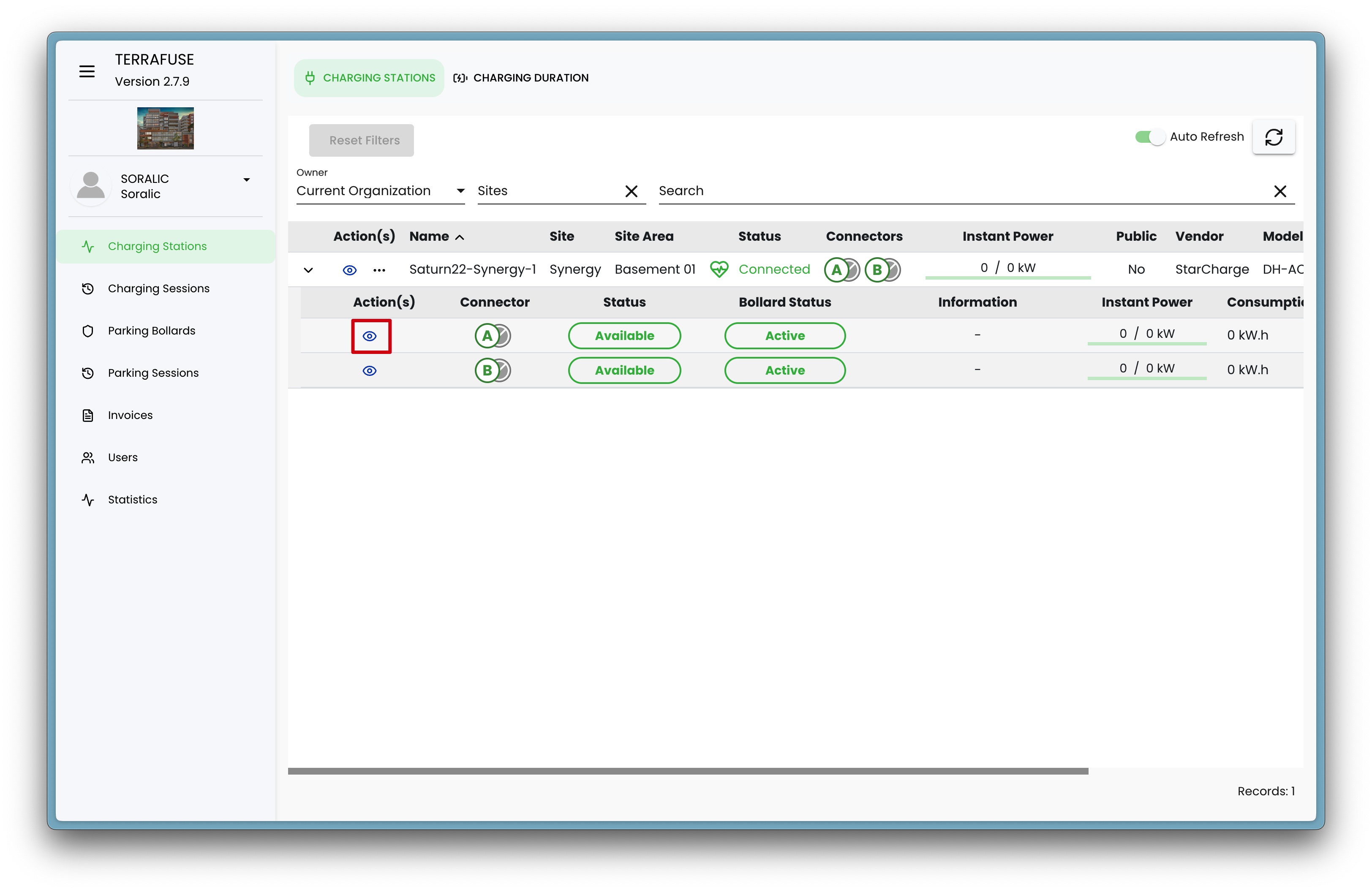
Clicking on the drop-down button for a charging station record will open the connector level details, as shown in Figure 4.1.5.
These details apply to each individual connector on a charging station (Figure 4.1.6).
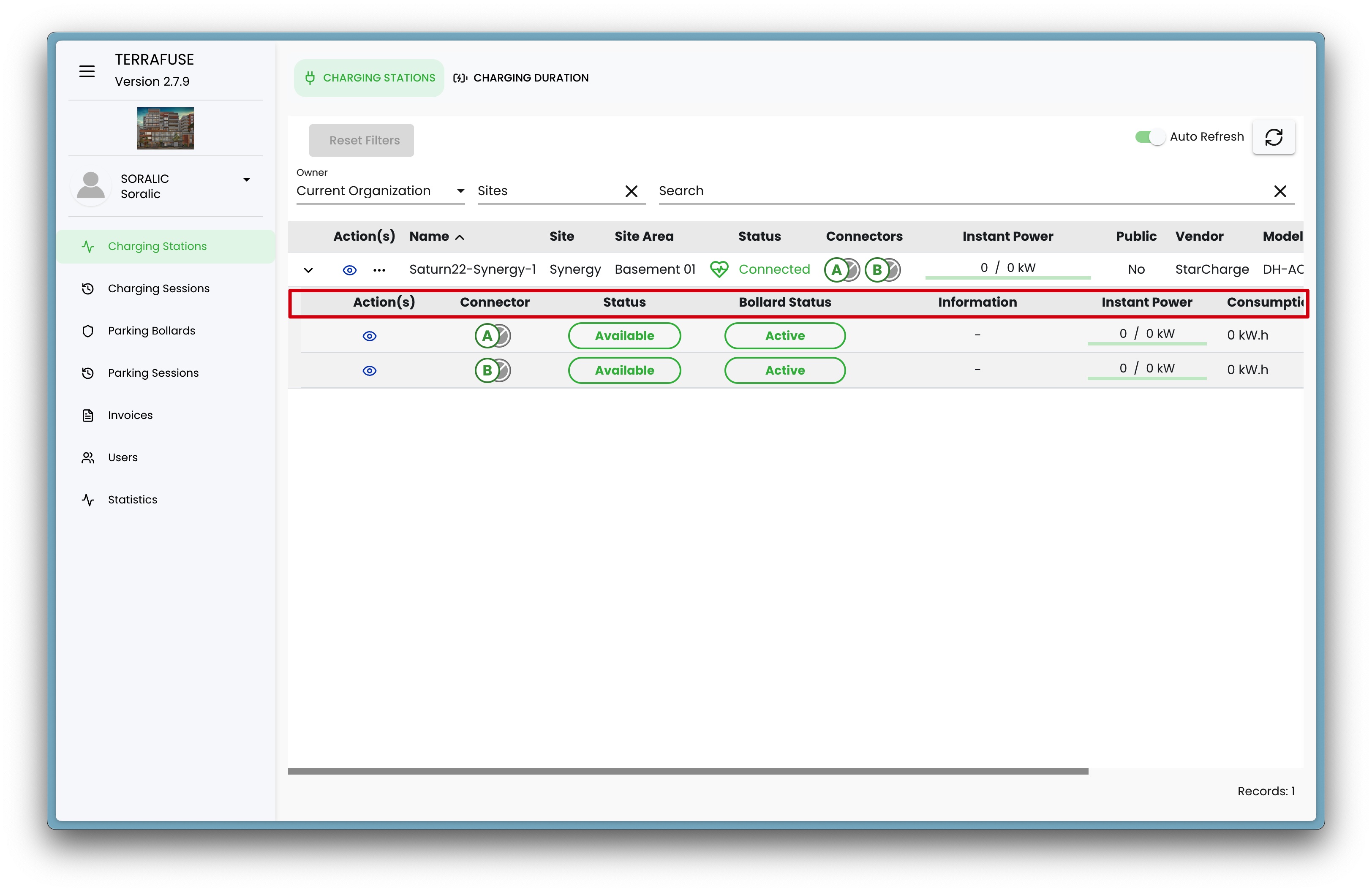
| Field | Description |
|---|---|
| Actions | Includes viewing last charging session details for a connector (Refer to Figure ). |
| Connector Label | Identifier for the connector. |
| Status | Current state of the connector. |
| Bollard Status | Shows whether the protective bollard is locked or unlocked. |
| Information | General connector information. |
| Instant Power | Real-time power usage for that connector. |
| Consumption | Total energy used. |
| Inactivity | How long the connector has been idle. |
| User | The user currently using or who last used the connector. |
OCPP Status Values
These are the possible values shown under the Status column for a connector:
| Status Value | Description |
|---|---|
| Available | Connector is ready for a new user. |
| Preparing | Connector is reserved for use and preparing before charging starts. |
| Charging | Vehicle is currently charging. |
| SuspendedEVSE | Charging paused by the charging station due to a limitation or restriction. |
| SuspendedEV | Station is ready to deliver energy, but the vehicle is not accepting it. |
| Finishing | Charging session has ended, but connector is not yet free for the next user. |
| Reserved | Connector is reserved for a specific user or future session. |
| Unavailable | Connector has been manually set to unavailable or is temporarily out of service. |
| Faulted | Connector has reported an error and cannot deliver energy. |
Connector-Level Actions
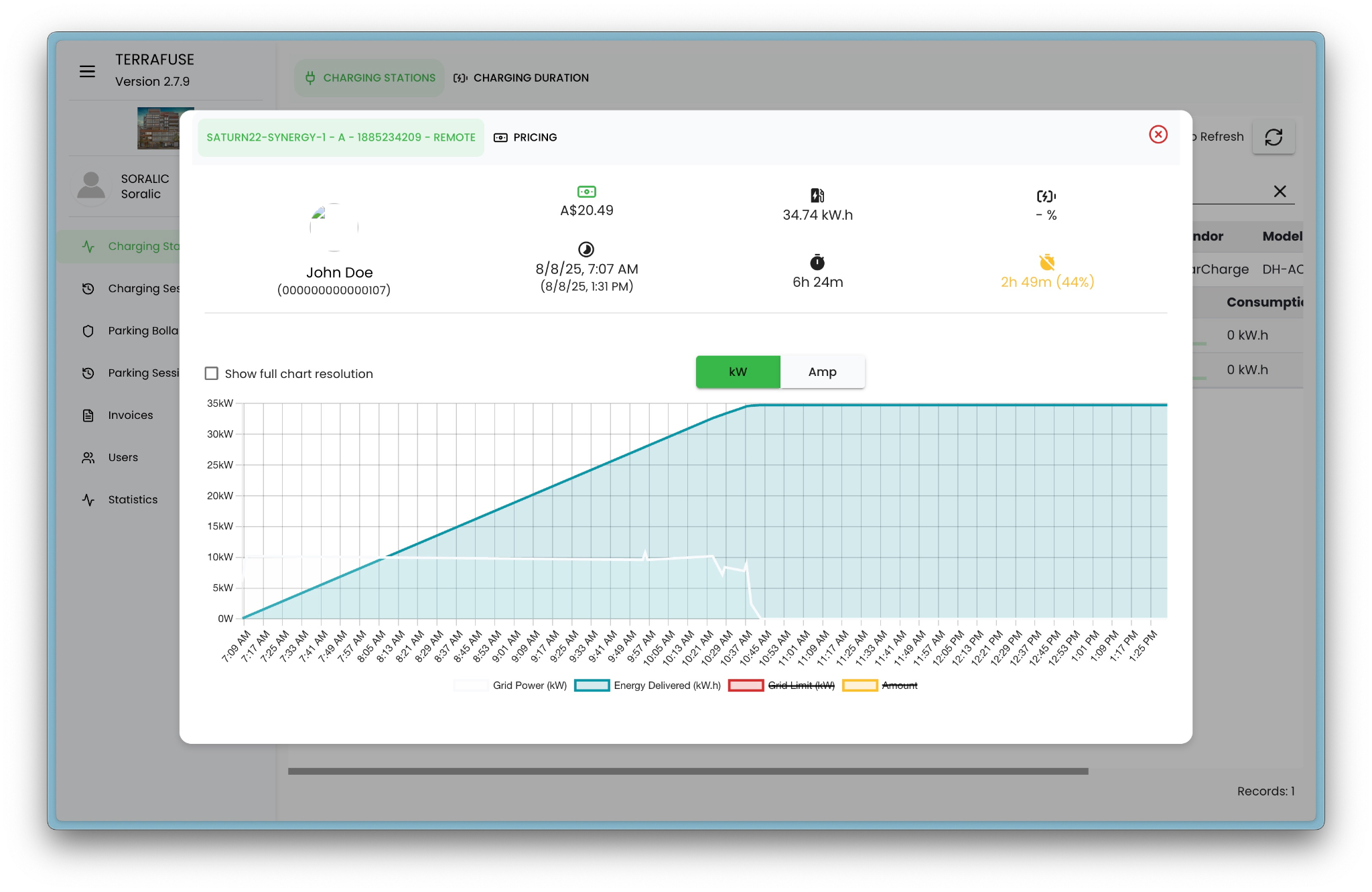
- View : When you click on the view button (Figure 4.1.7) on a connector a tab opens that shows the latest charging session details (Figure 4.1.8).
You can view the following information regarding the latest charging session with the specific connector:
Session power usage details
When viewing a connector's last charging session, the interface shows (Figure 4.1.8):
- Connector & Station ID with session reference.
- User details – name and ID.
- Session cost.
- Energy delivered – total kWh supplied during the session.
- Charging duration and inactivity time.
- Start and end times of the session.
- Graph showing charging power (kW) and energy delivered over time.
- Option to view data in kW or Amps.
Session Pricing Details
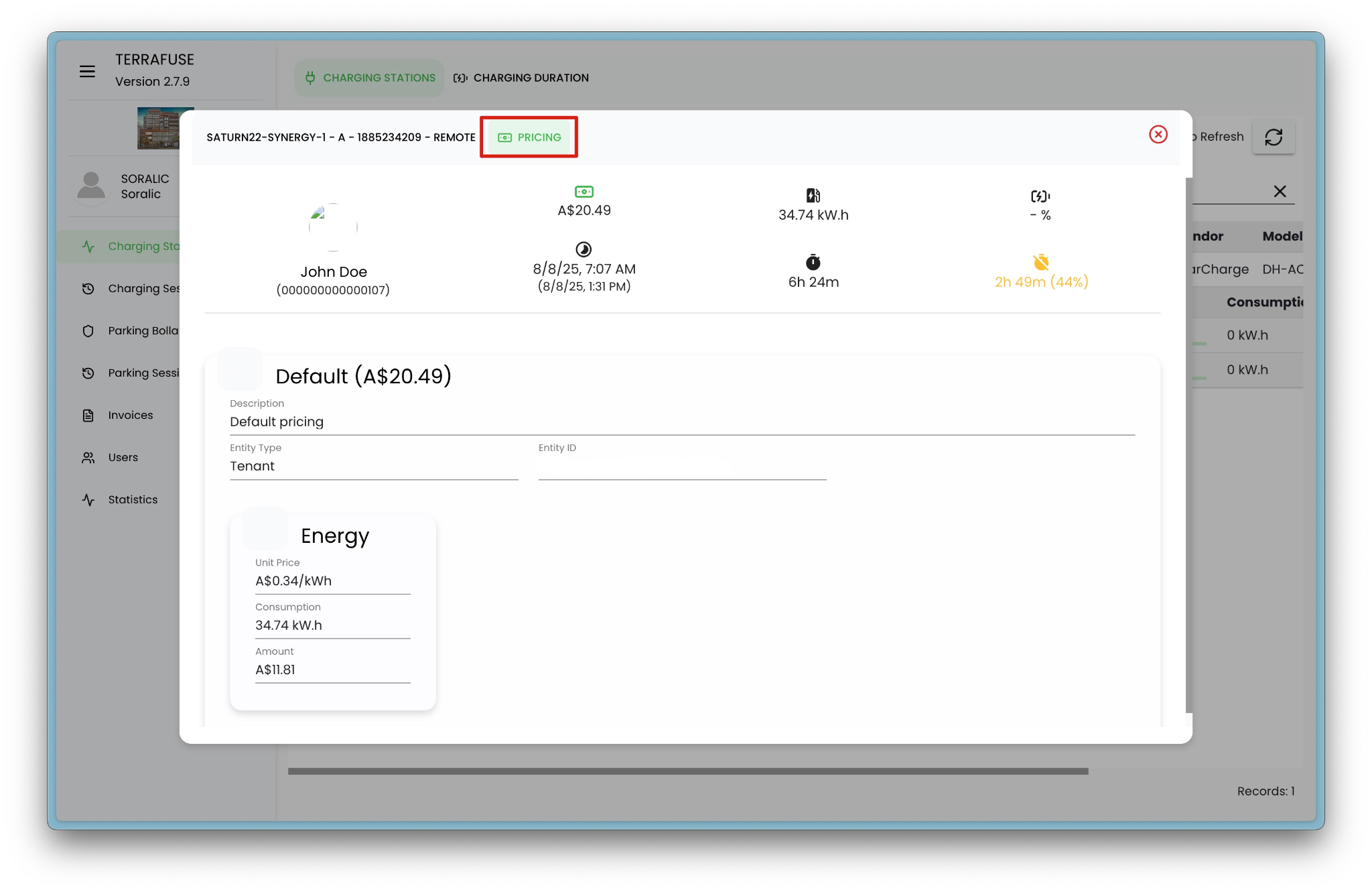
When viewing a connector's last charging session's pricing , the interface shows (Figure 4.1.9):
- Connector & Station ID with session reference.
- User details – name and ID.
- Session cost – e.g., A$20.49.
- Energy delivered – total kWh supplied during the session.
- Charging duration – total time the connector was in use.
- Inactivity time – duration when the EV was plugged in but not charging.
- Start and end times of the session.
- Pricing details – pricing plan applied for the session.
- Entity type and Entity ID – e.g., Tenant and associated ID.
- Energy cost breakdown:
- Unit price – cost per kWh.
- Consumption – total kWh delivered.
- Amount – calculated cost for energy usage.
Searching and Filtering
Managers can:
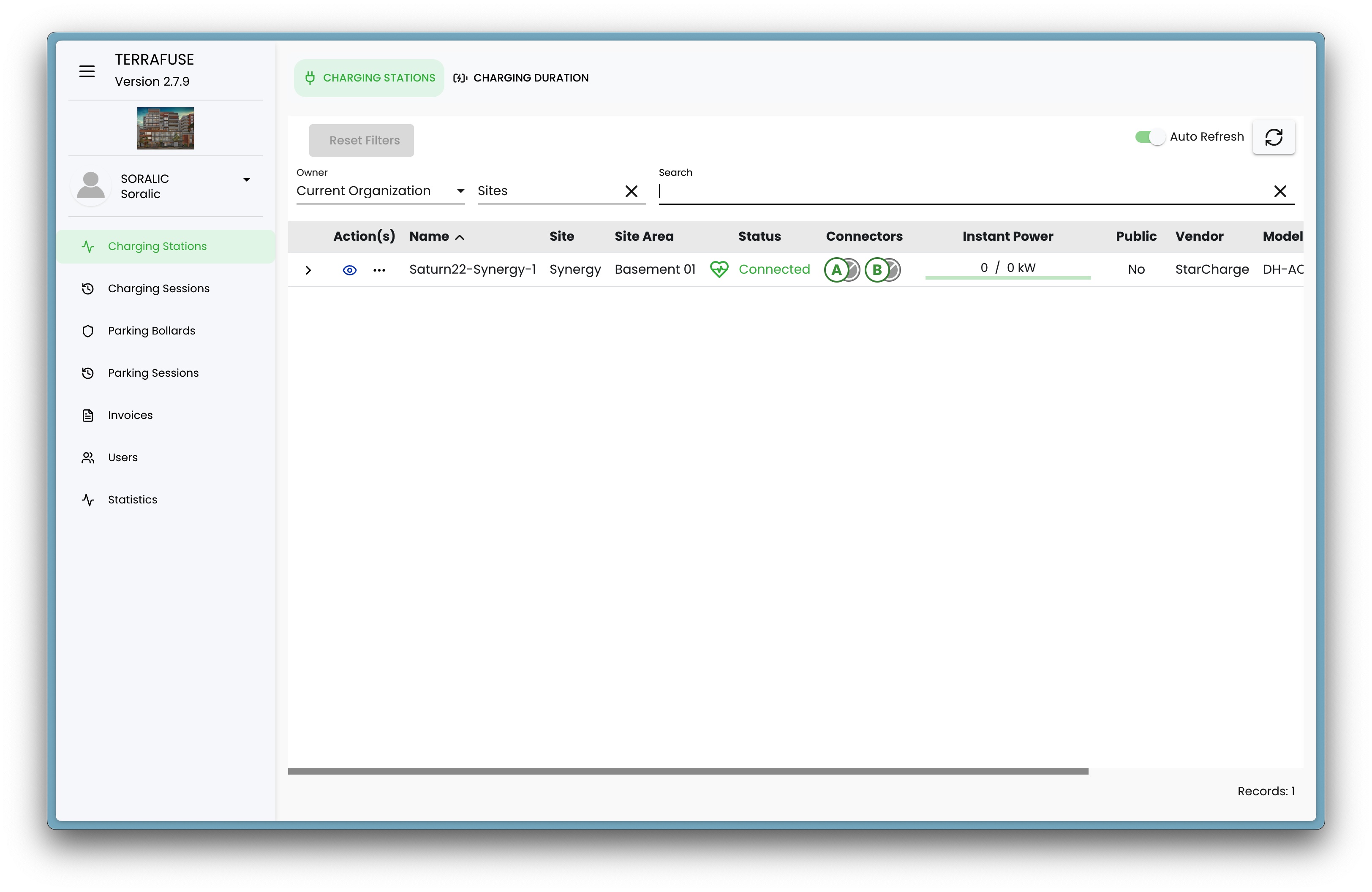
- Search for a specific charging station or connector by name.
- Filter the list by organization or site to quickly find relevant stations.