
Appearance
Booking Visitor Parking
Checking Availability
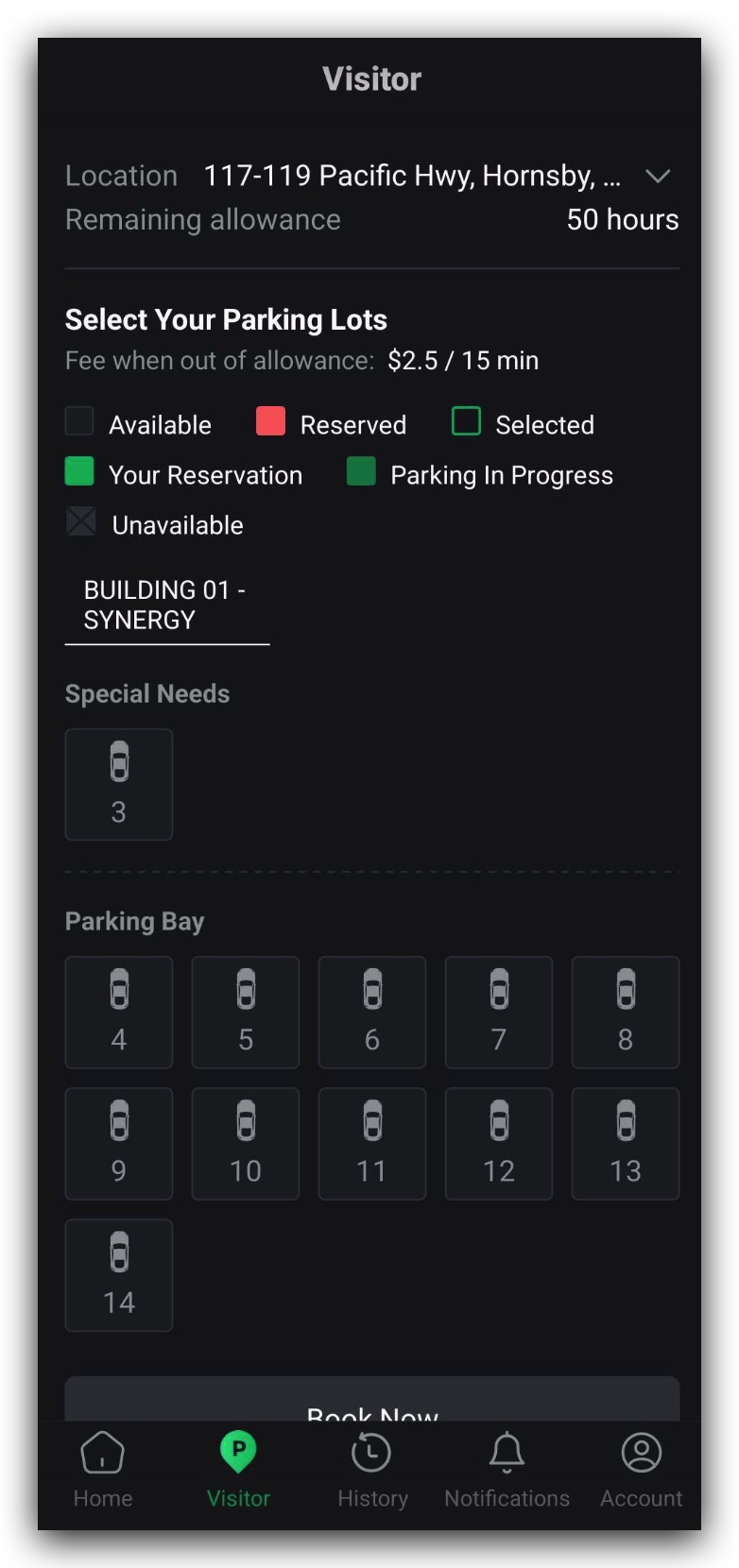
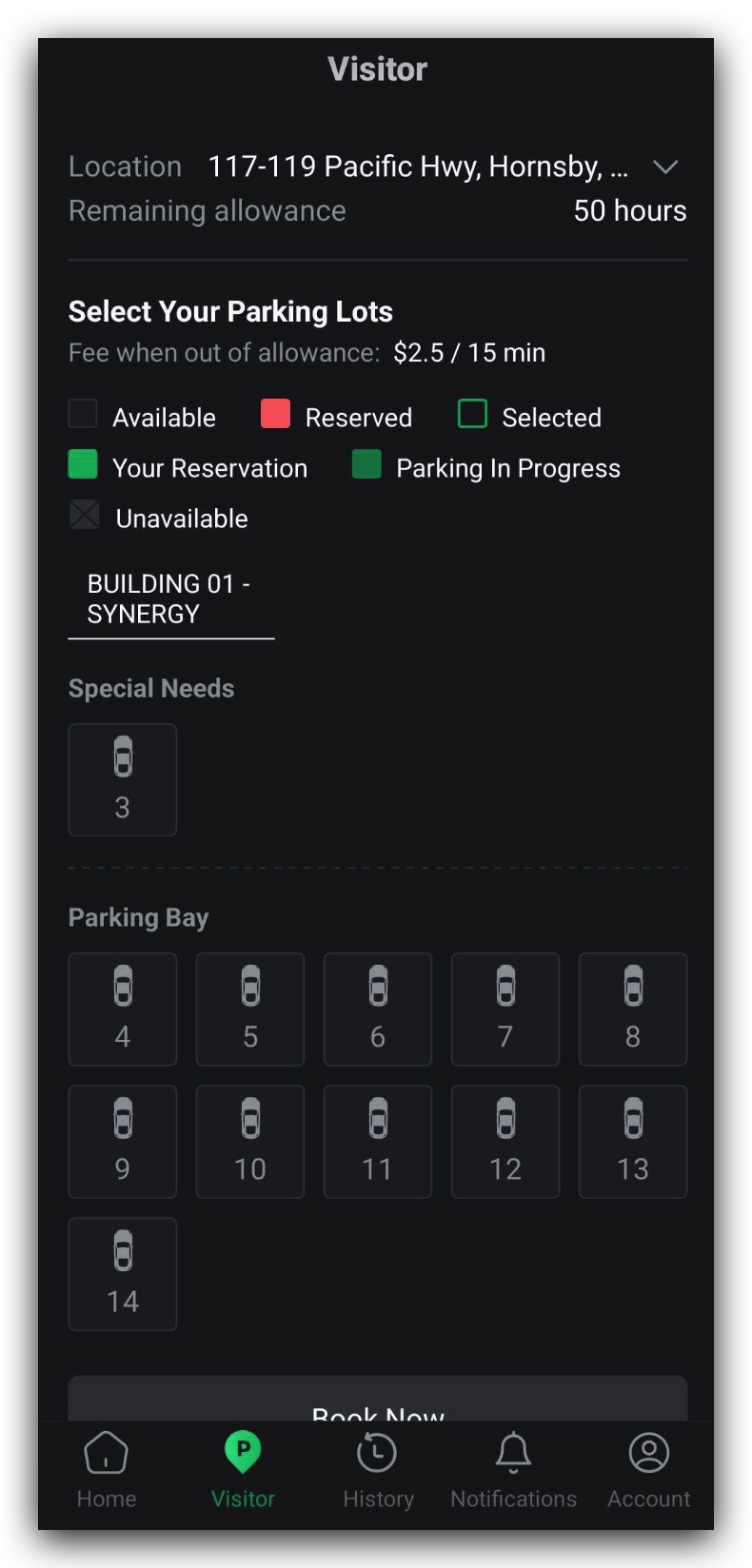
On the Visitor Parking page, you’ll see:
- Site location
- Remaining allowance
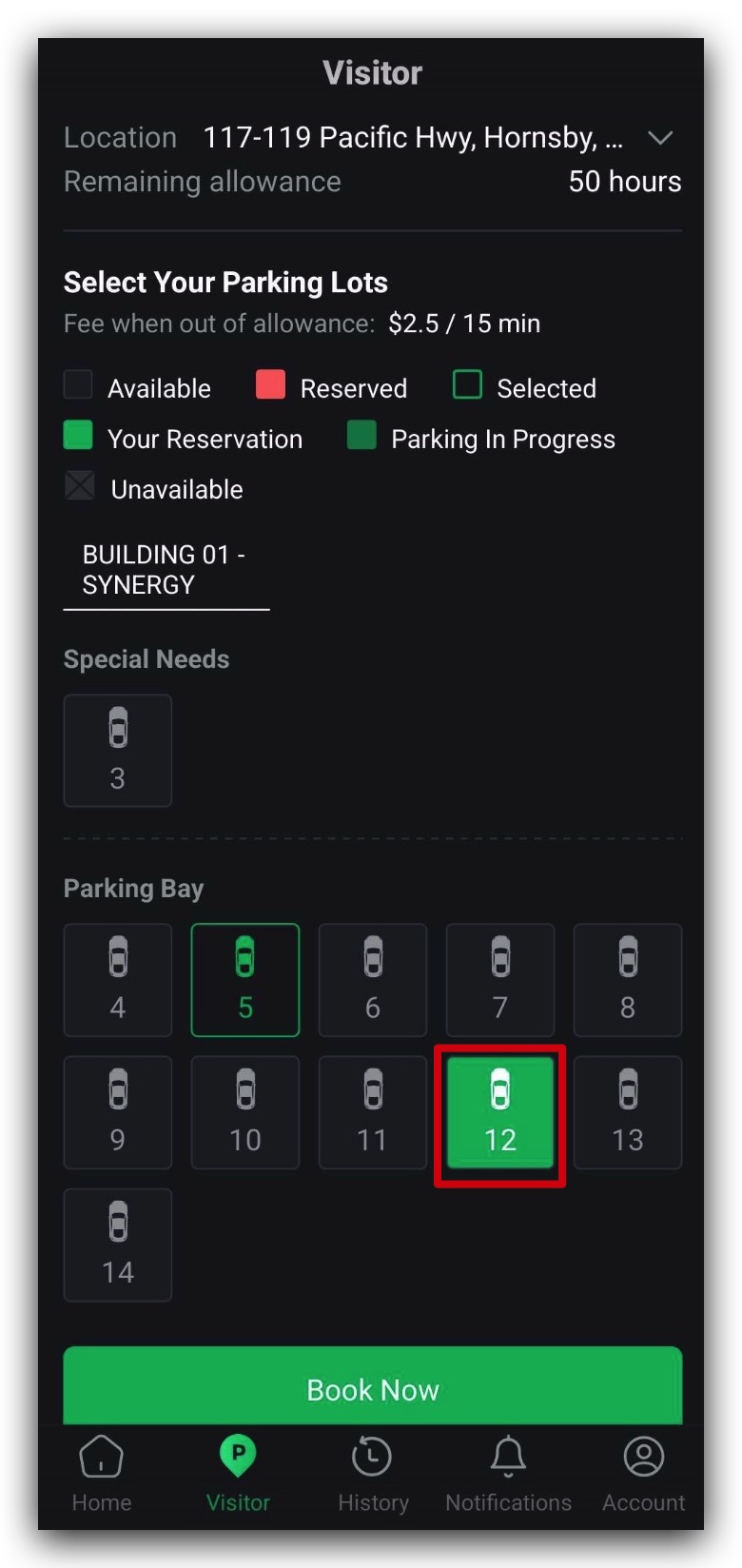
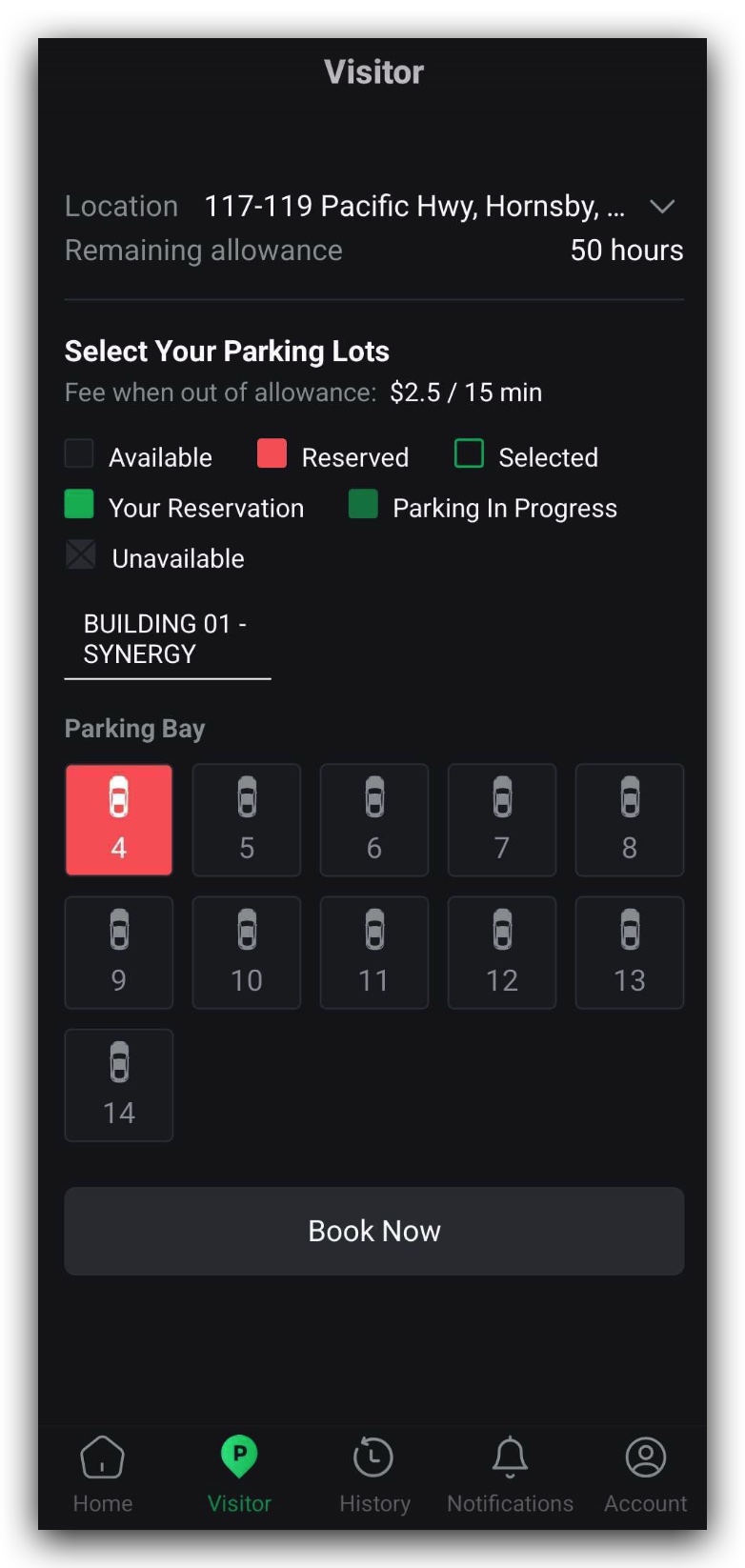
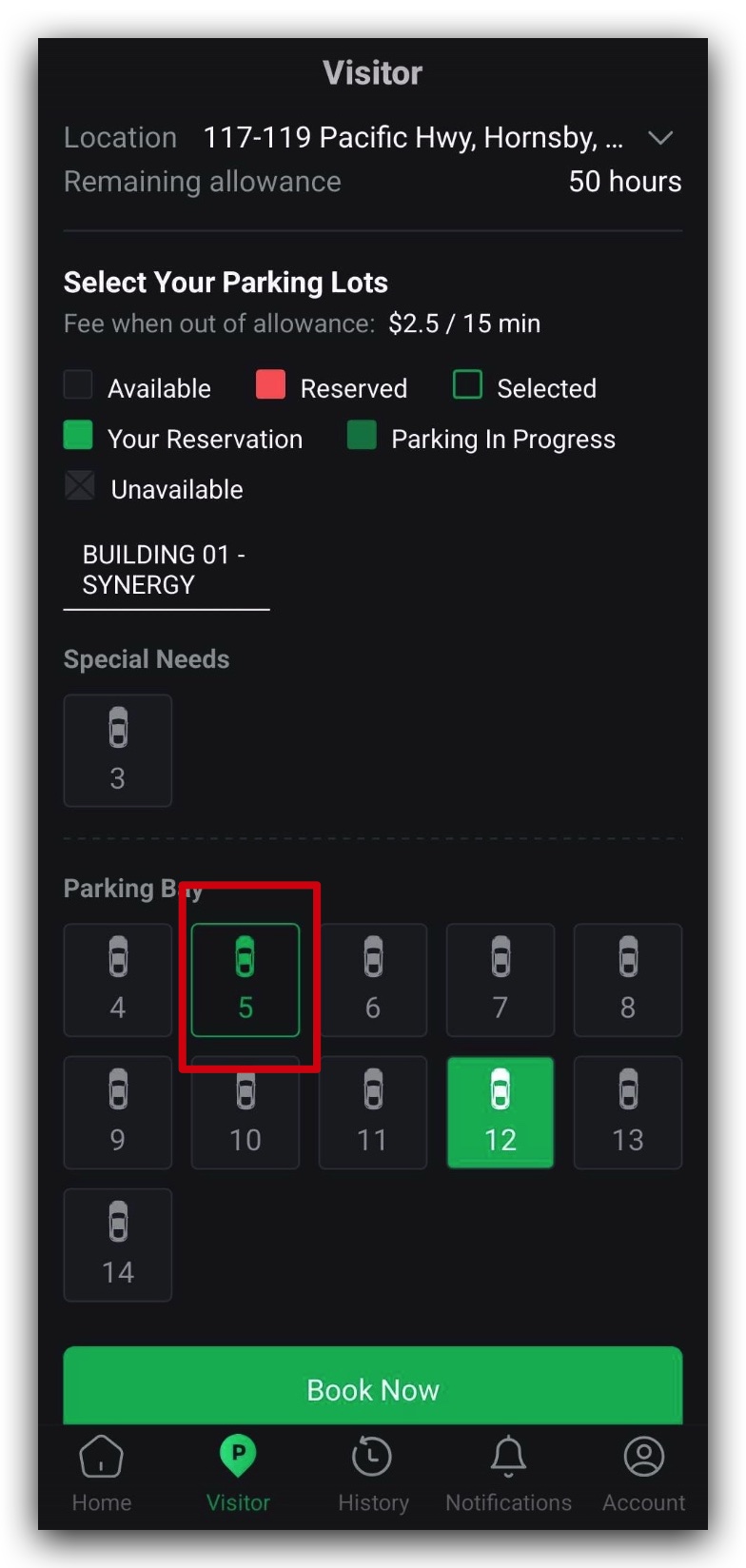
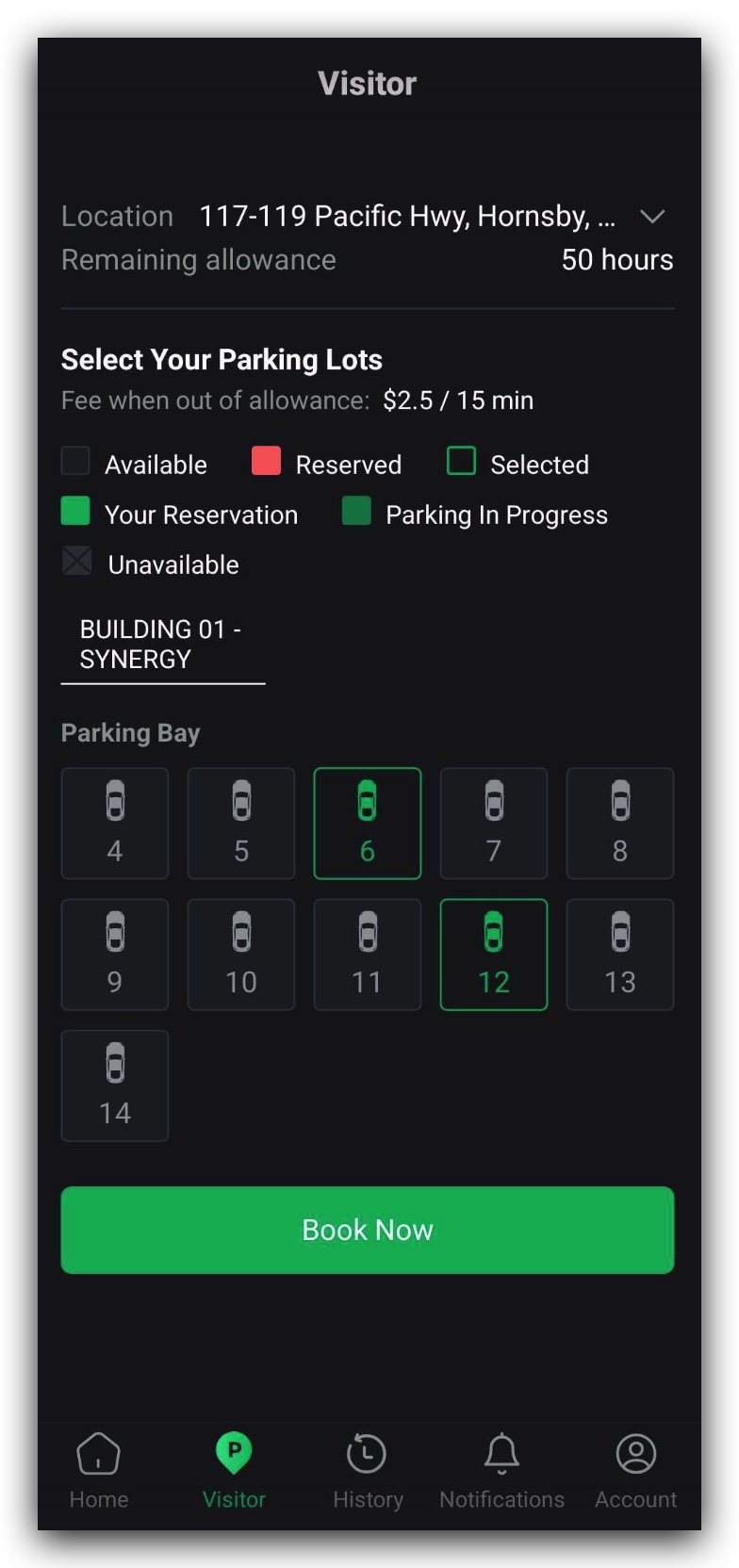
- Parking bay map with color codes:
| Status | Description |
|---|---|
| Available | Spot is available for booking (Figure 2.2.1) |
| Reserved | Spot is booked by another user (Figure 2.2.3) |
| Selected | Spot currently selected by you for reservation(Figure 2.2.4). |
| Your Reservation | Spot you have successfully booked (Figure 2.2.2) |
| Parking in Progress | Your ongoing parking session |
| Unavailable | Spot is blocked/unavailable for other reasons |
Note: Mobility parking bays are visible only if your building manager has granted access.
Note: If your parking allowance runs out during a session, additional charges (determined by the building manager) will apply per 15-minute interval.
Reserving a Spot
- Tap an Available bay (Figure 2.2.7).
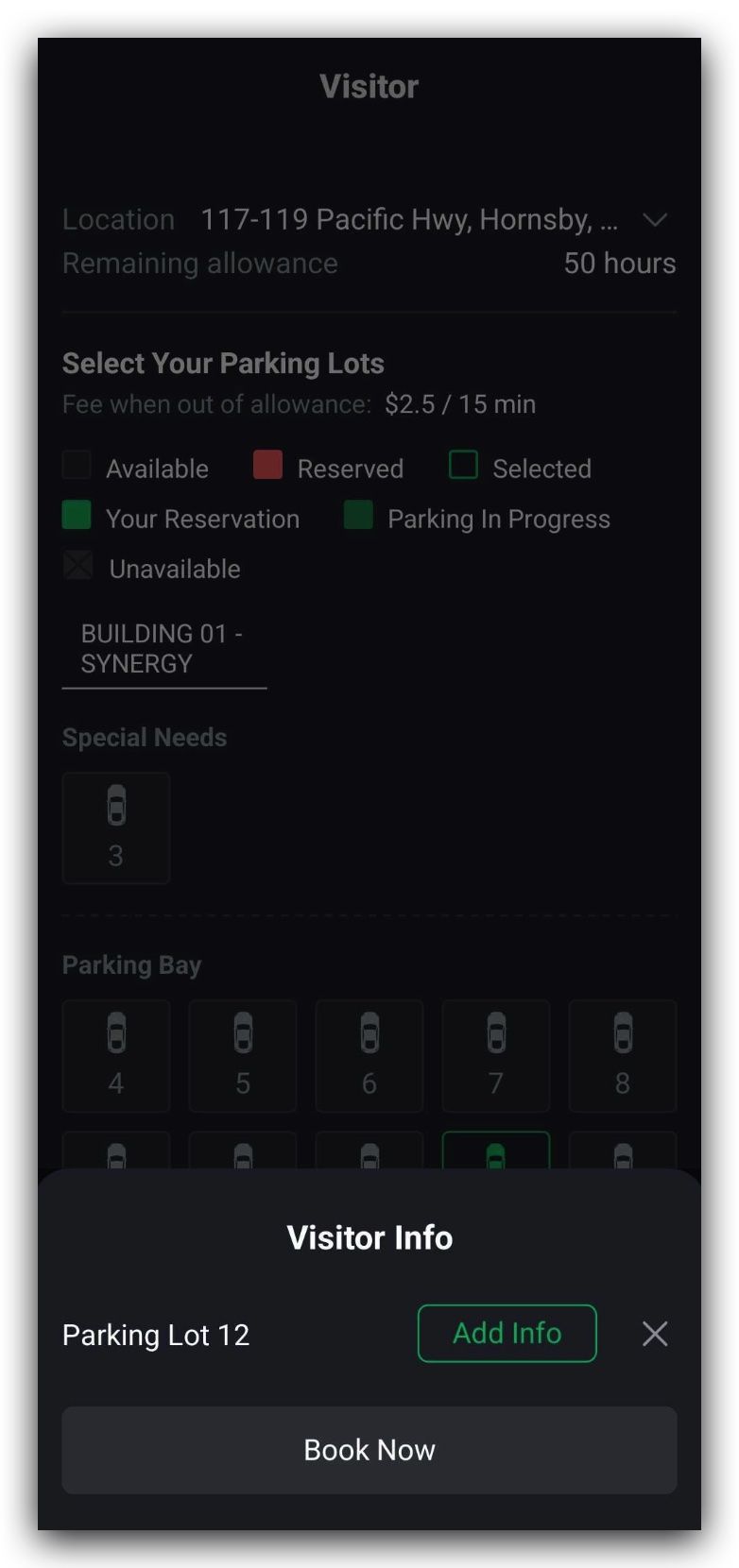
- Tap Add Info and enter (Refer to Figure 2.2.8 and 2.2.9):
- Visitor’s name
- Vehicle registration number
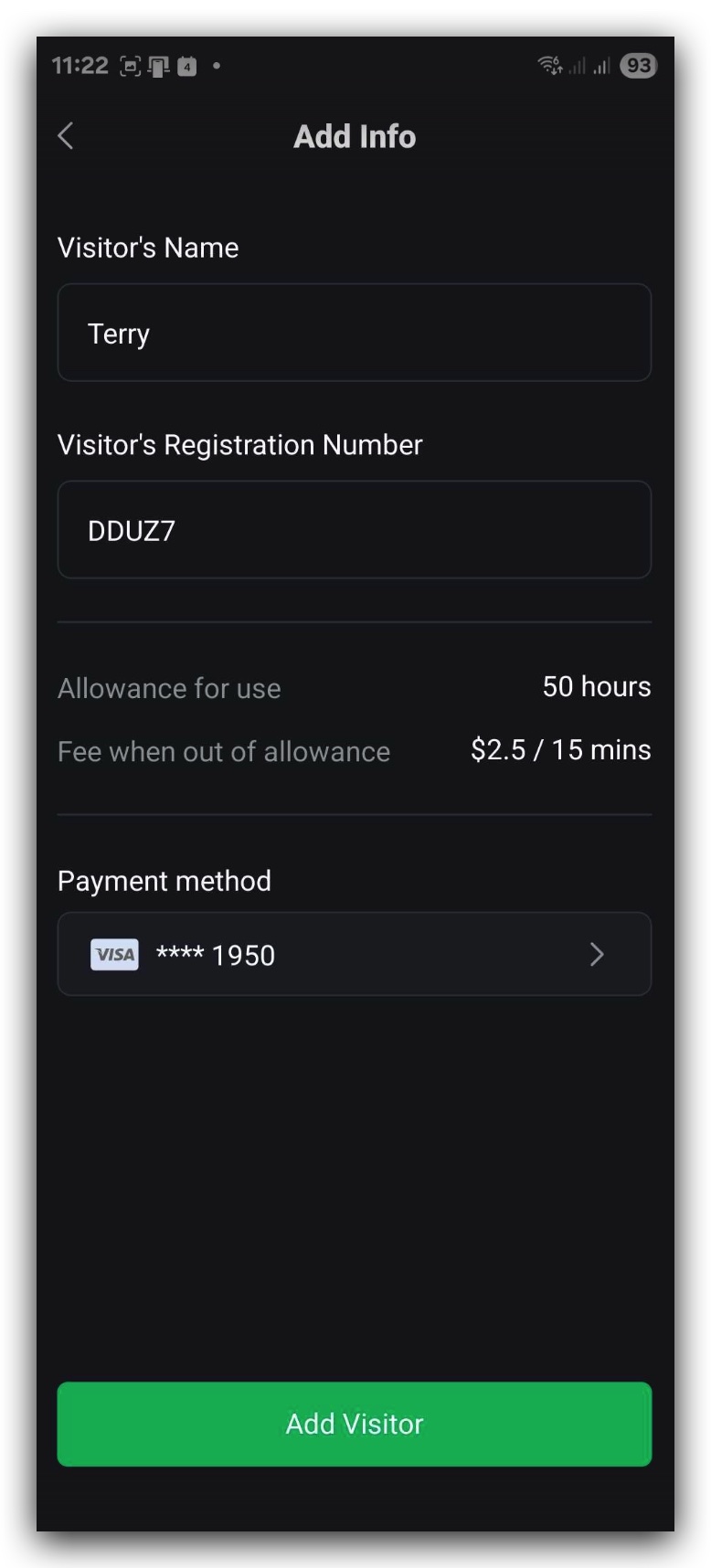
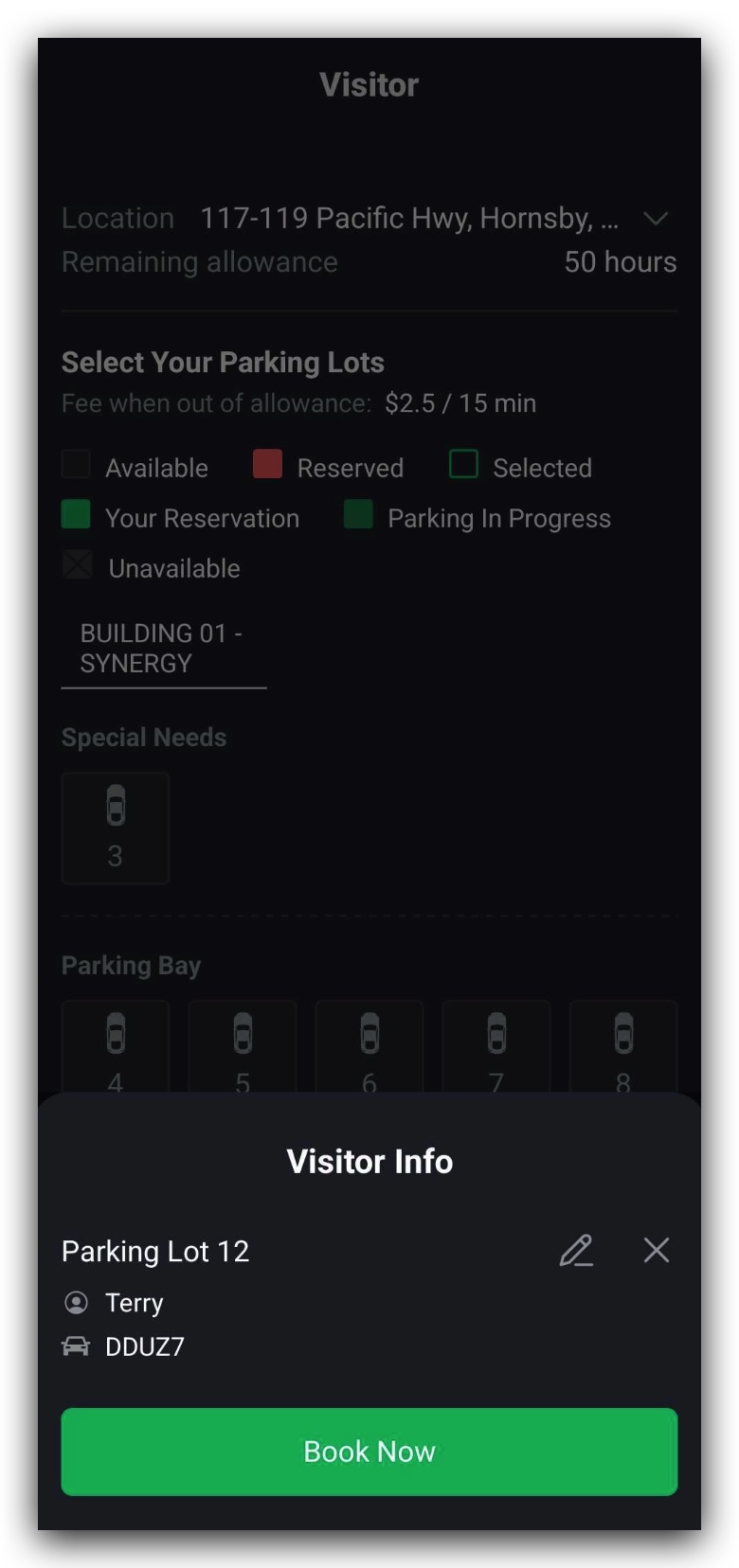
- Click Add Visitor to add the information of the visitor (Figure 2.2.9).
- Click on Book Now to confirm the reservation (Figure 2.2.10).
- You may modify or cancel a reservation if needed.