
Appearance
Resident App Guide
Installing the TerraFuse App
Download the App
Residents can download the TerraFuse app from the App Store or Google Play. Download links are also available on the official TerraFuse website.
Sign Up / Log In
To use the app, residents must either sign up as a new user or log in with existing credentials.
Sign Up
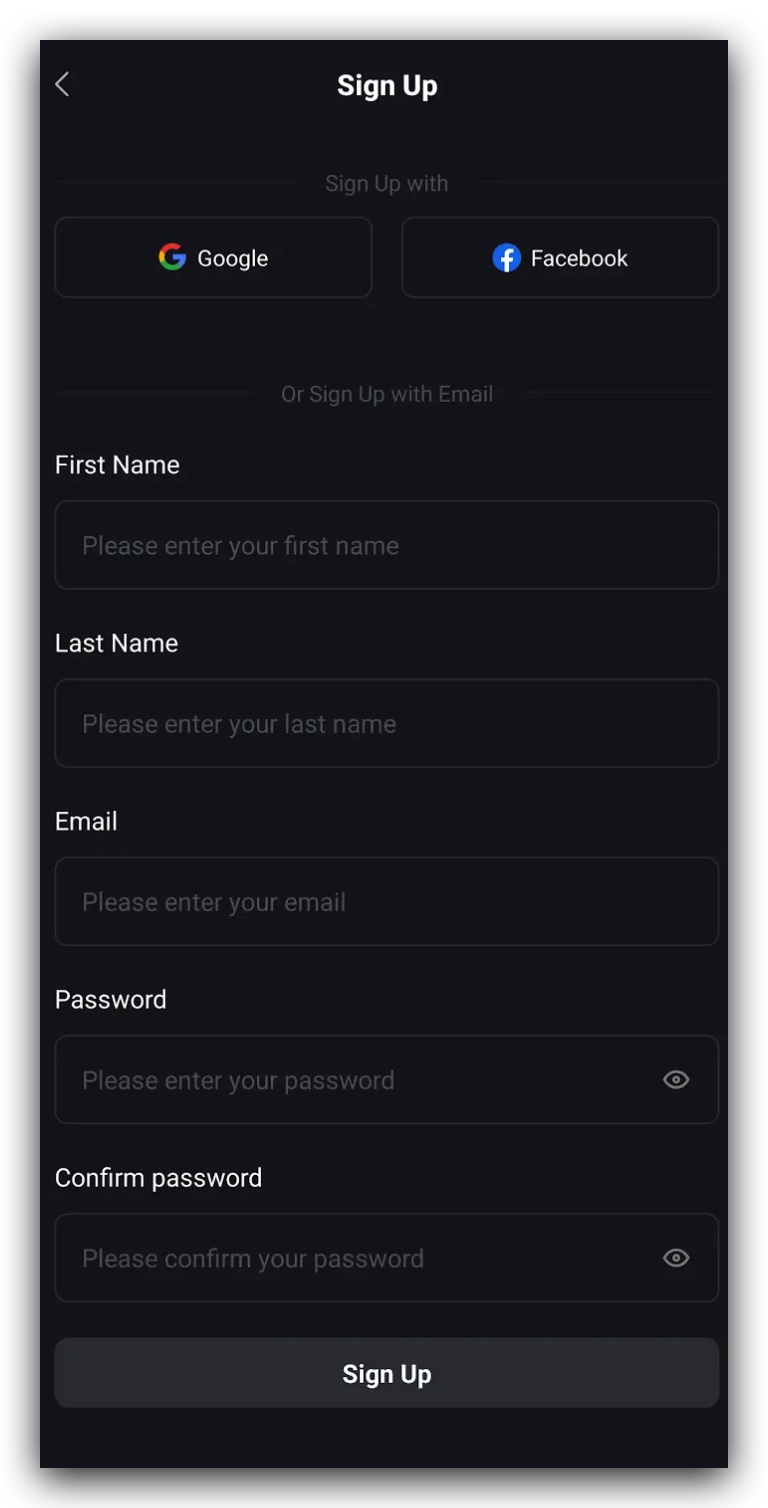
New users will be asked to provide:
- First name
- Last name
- Email address
- Password
Alternatively, they can sign up using Google, or Facebook, as shown in Figure 1.1.2.
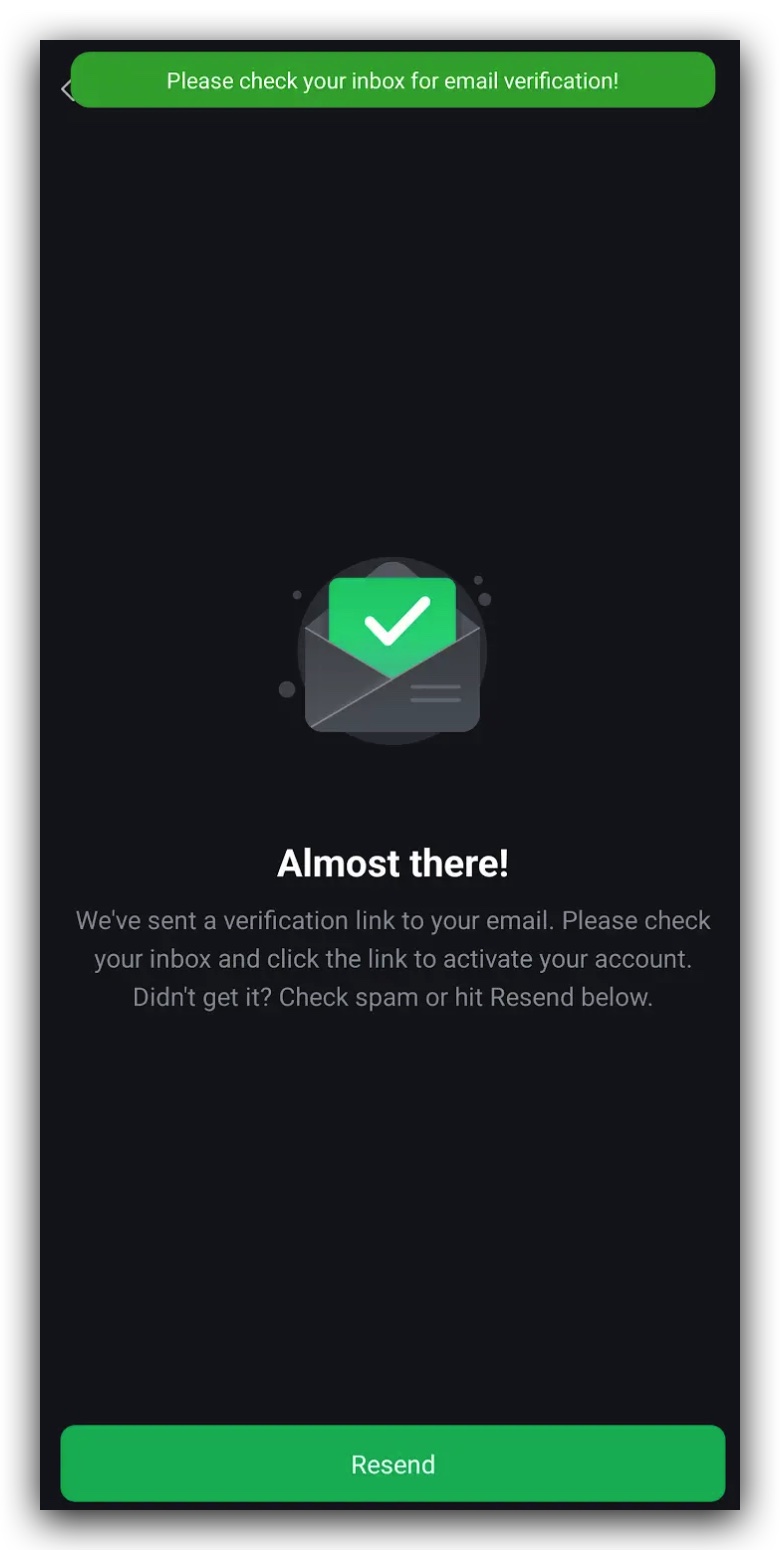
After signing up, residents will receive a verification email, where they can click on the link to activate the account. If the email isn't received, residents can click on the resend button as shown in Figure 1.1.3.
Log In
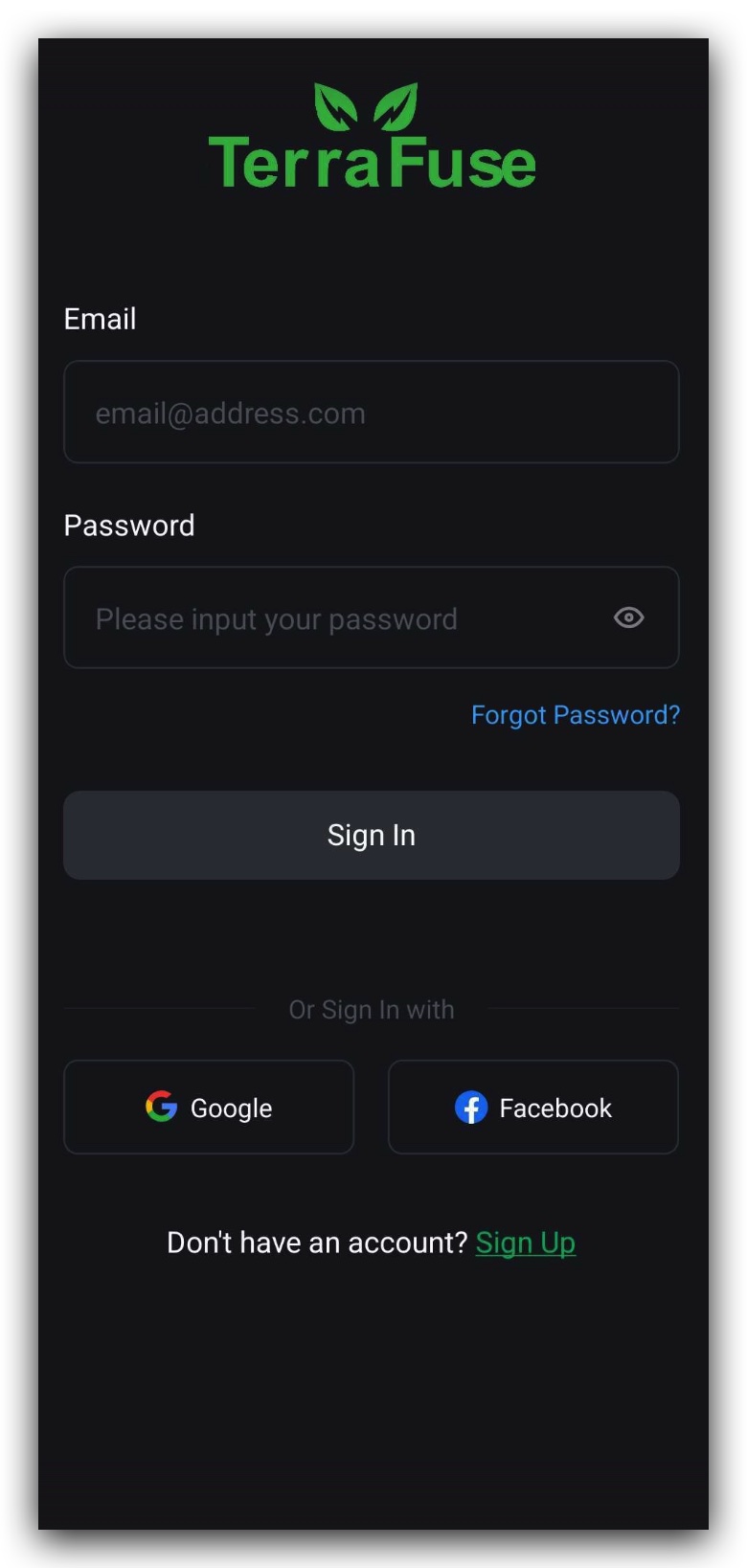
Existing users can log in with:
- Email address
- Password Or use social login options: Google, Apple, or Facebook, shown in Figure 1.1.1.
Forgot Password
If users forget their password, they can click “Forgot Password” on the sign-in screen. After entering their email address, a password reset link will be sent via email.
Setting Up Your Profile
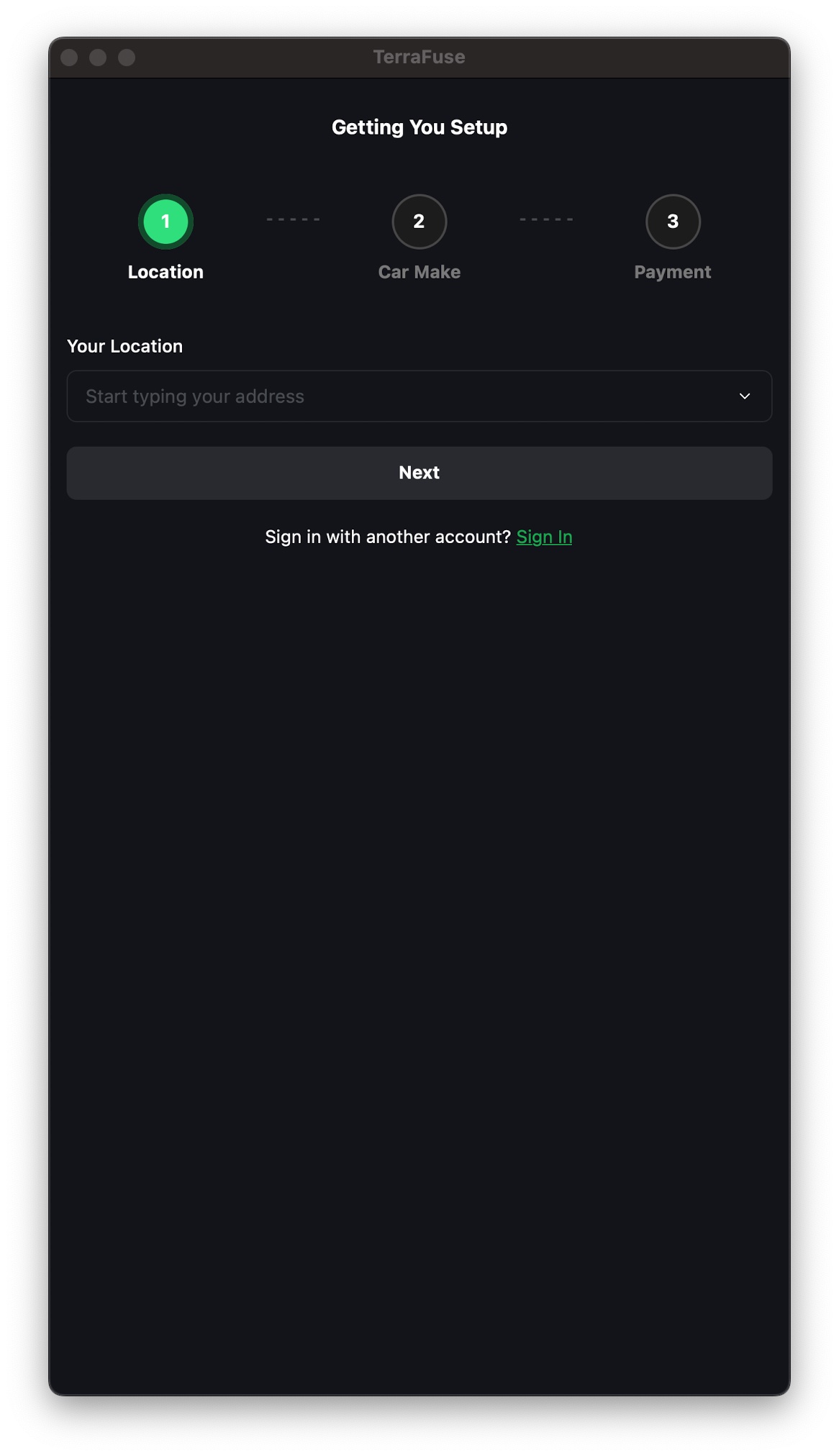
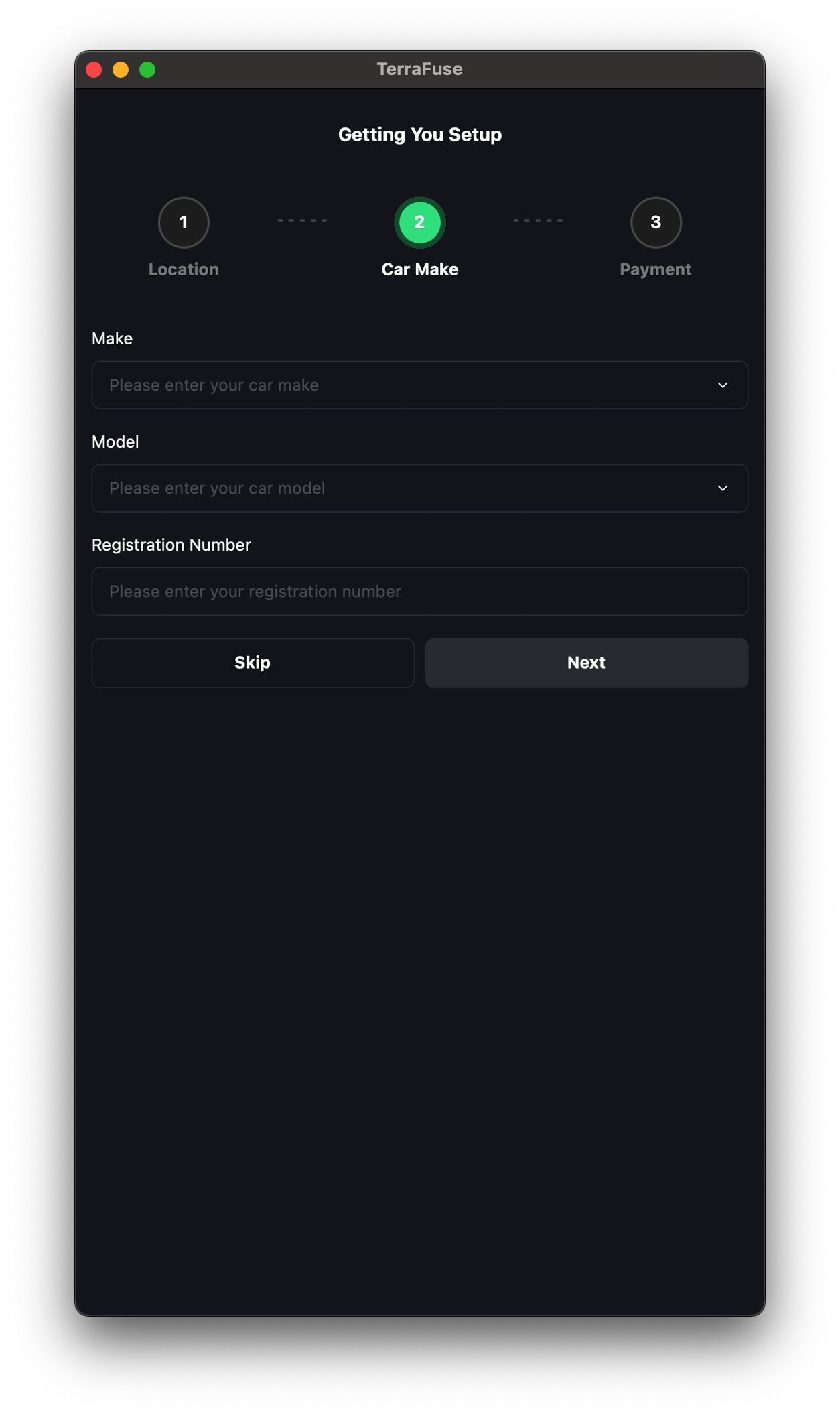
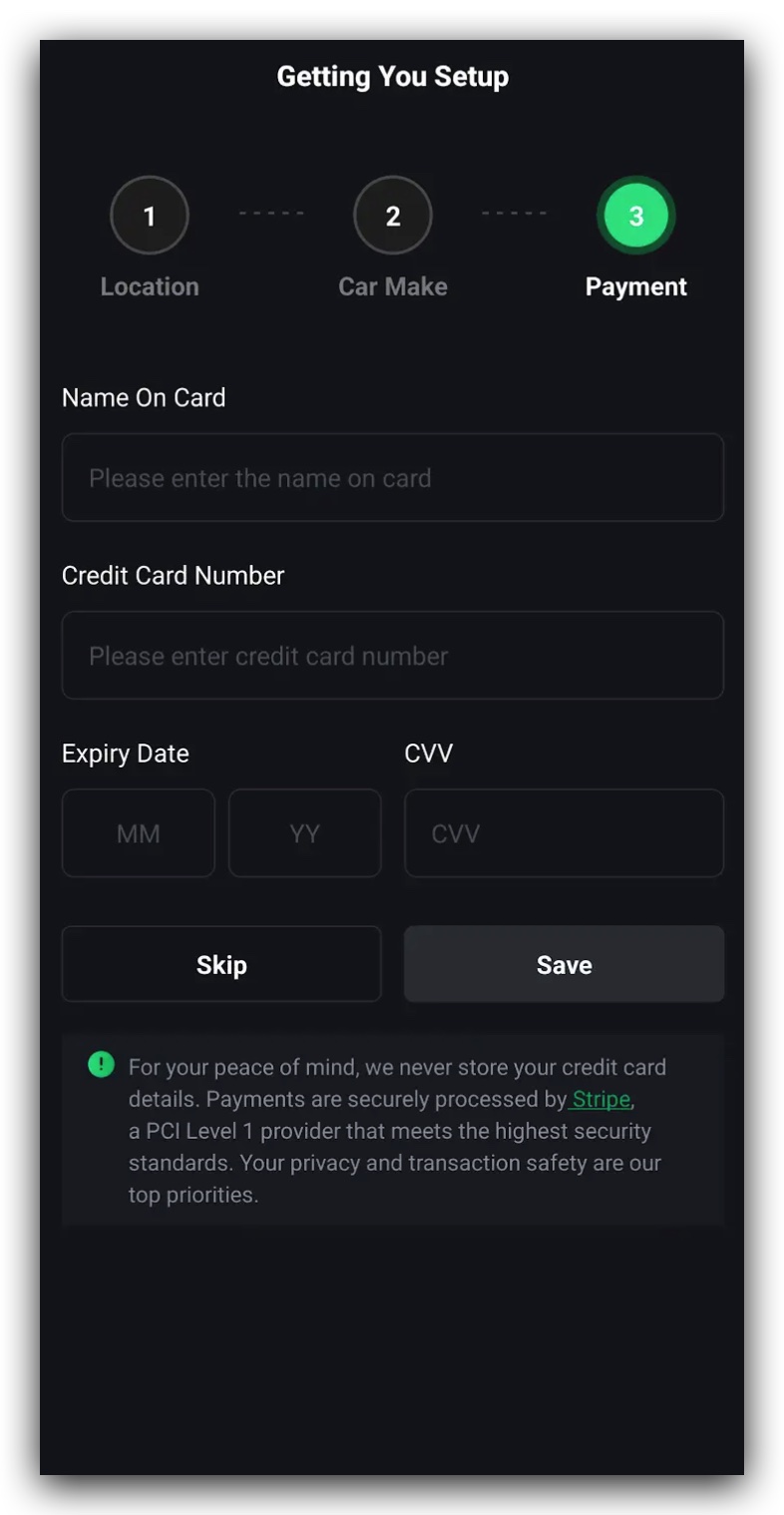
After signing up or logging in, residents must complete their profile setup to access visitor parking services. This is a three-step process:
Location
Select the current residential site from the dropdown list of TerraFuse-enabled properties.
Car Details
Enter the vehicle’s make, model, and registration number.
Payment Information
Provide valid payment details including:
- Name on card
- Card number
- Expiry date
- CVV
Note: If any step is skipped, the user will be prompted to complete it before being able to use the app’s features. All three steps must be completed to proceed with ev charging or booking visitor parking.