
Appearance
User Settings Guide
You can configure your personal preferences and account details in the Account section of the TerraFuse App, as shown in Figure 1.6.1.
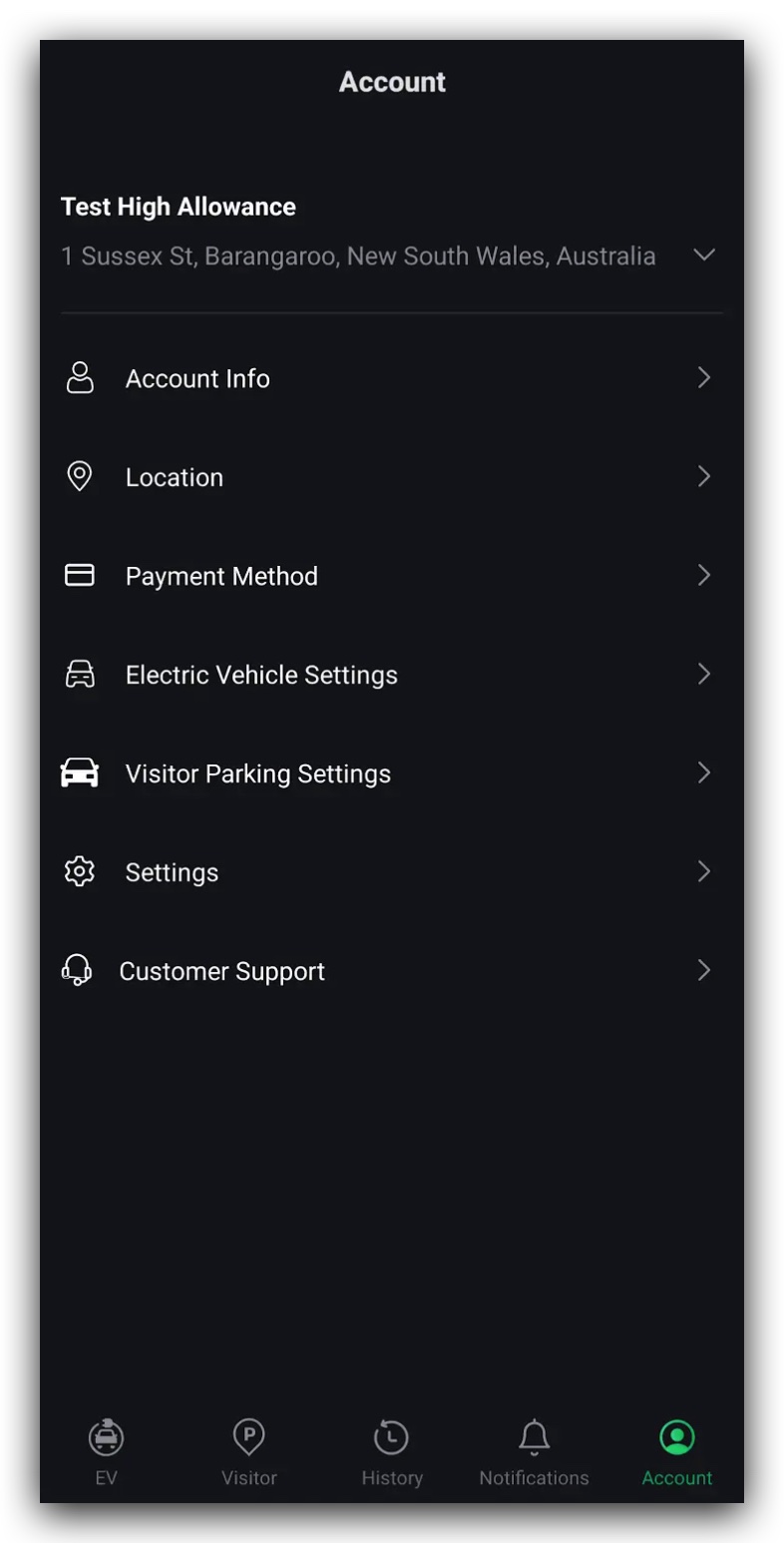
This menu gives you control over your profile, payment methods, EV settings, visitor parking, and support options.
Available Settings
Account Info
In this section, you can manage your personal profile details, shown in Figure 1.6.2:
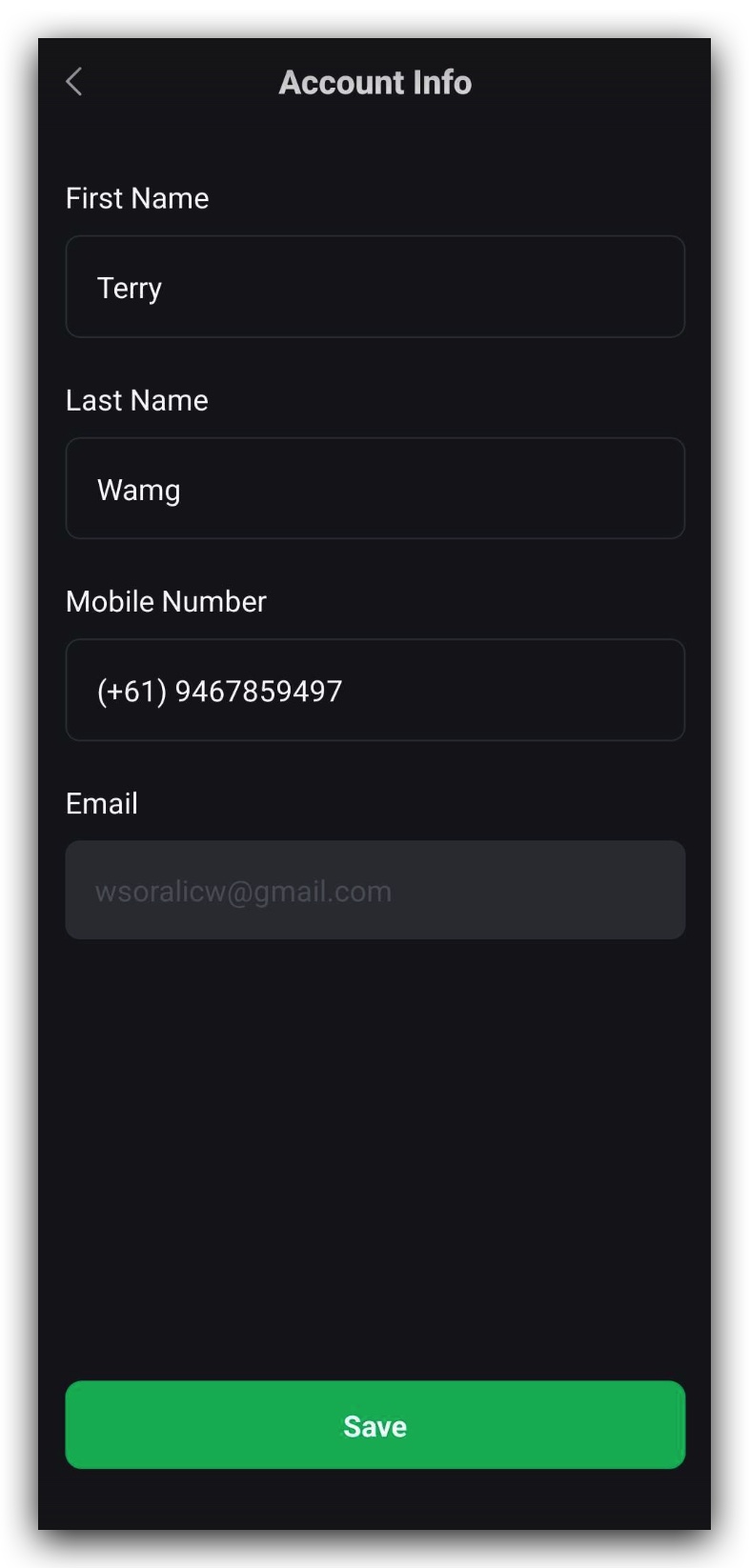
- Update your first name, last name, and mobile number.
- Your registered email address cannot be changed, as it is tied to your account login and payment verification.
⚠️ If you need to update your email, please contact TerraFuse Support for assistance.
Location
The Location setting allows you to manage where you can charge your vehicle:
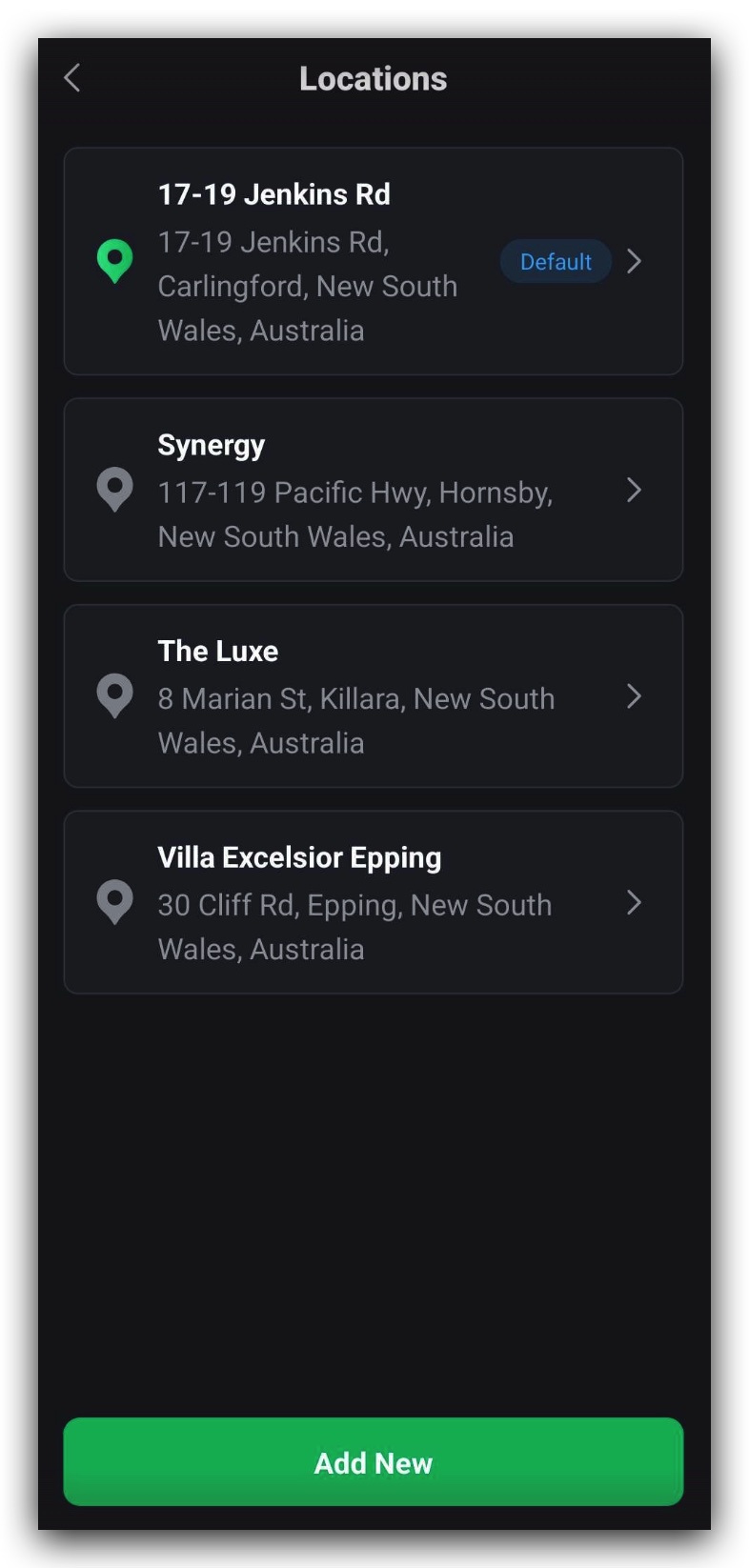
- Add multiple charging locations by clicking the Add New button, shown in Figure 1.6.3.
- Each saved location corresponds to a TerraFuse-enabled charging site.
- Click on a location to view detailed site information.
You can also manage your default location, shown in Figure 1.6.4:
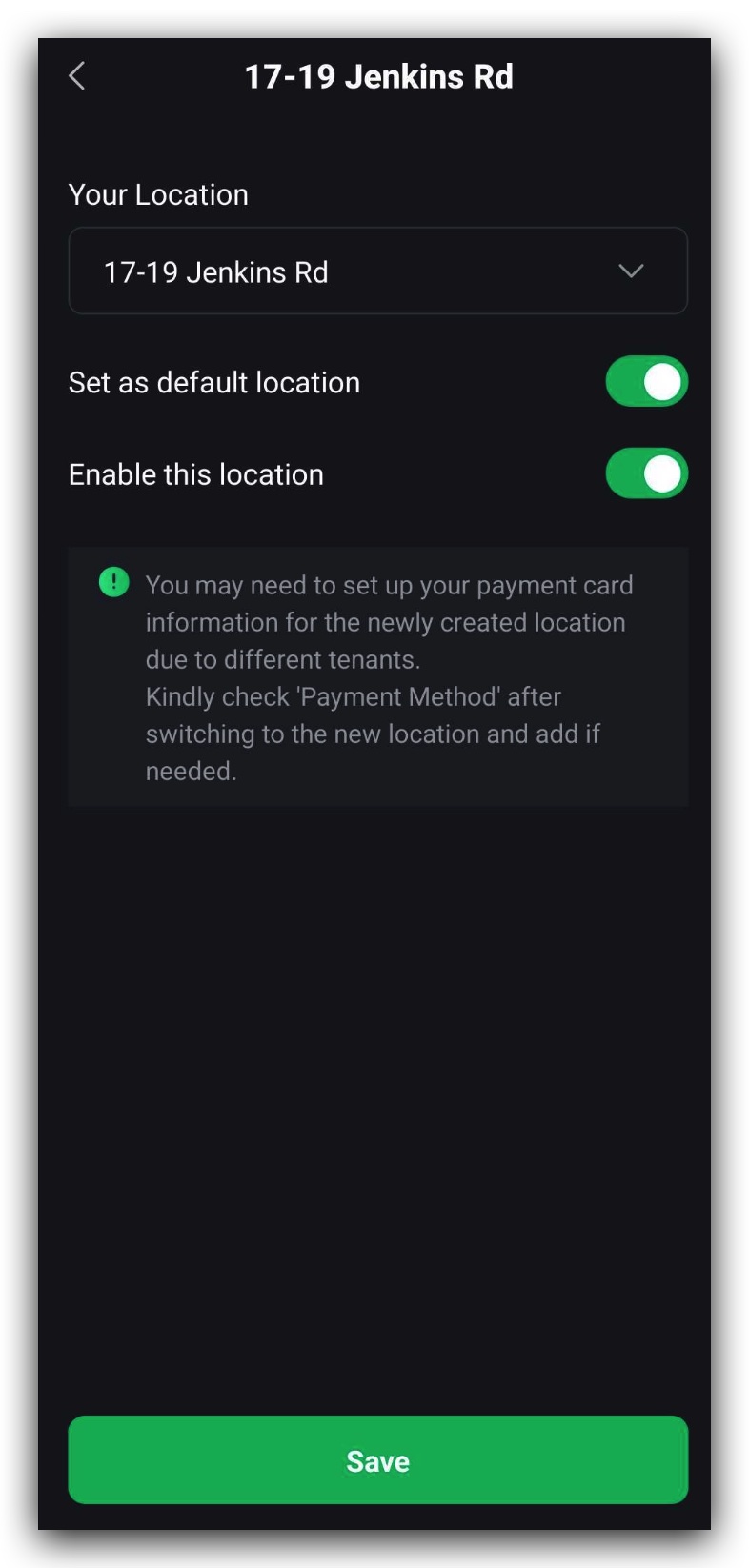
- Use the toggle to set a site as your default charging location.
- Enable or disable access to specific locations as needed.
✅ This feature is especially useful if you live, work, or frequently travel between multiple sites that support TerraFuse chargers.
Payment Method
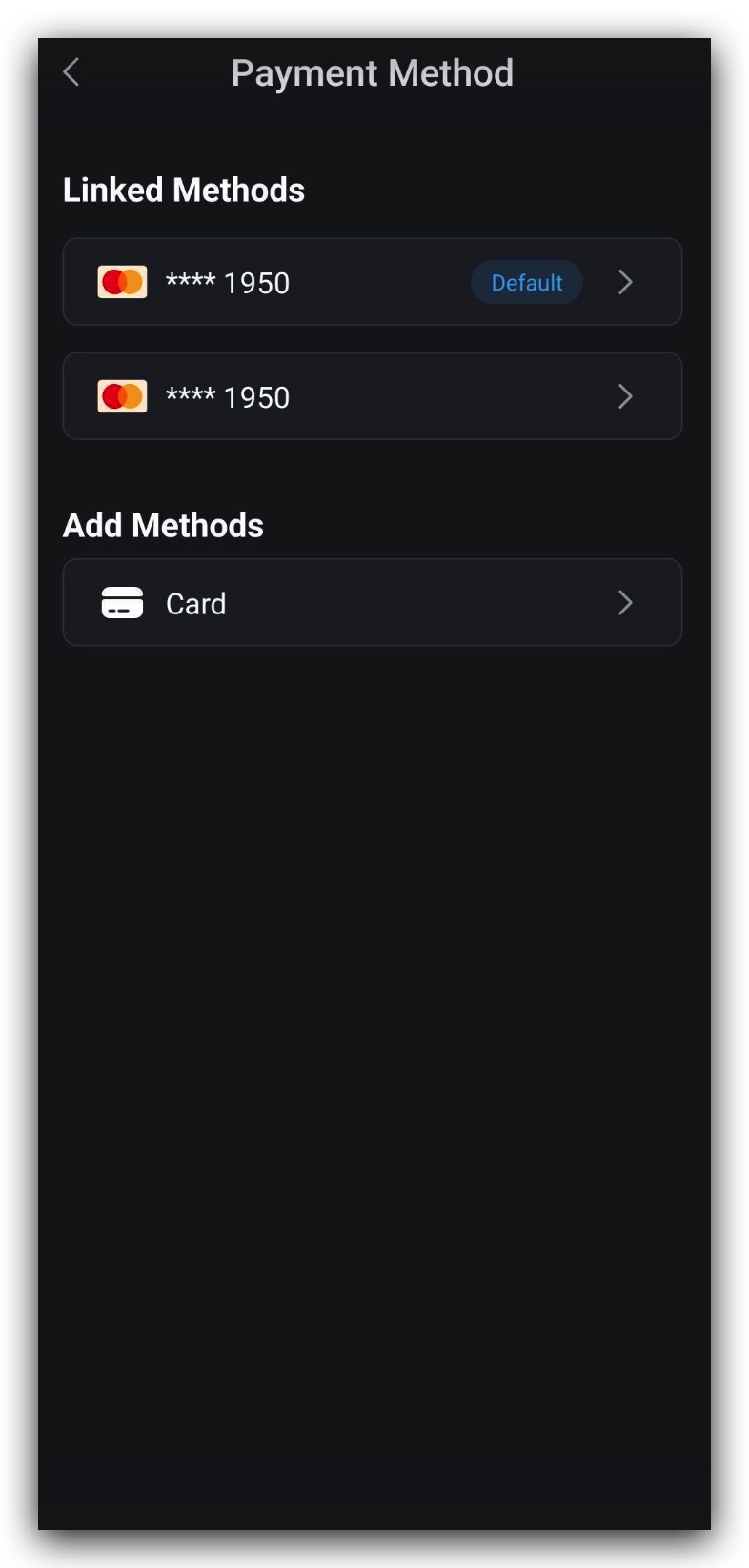
This section allows you to manage credit and debit cards linked to your account, shown in Figure 1.6.5.
- Add multiple cards for flexibility.
- View saved card details in your account.
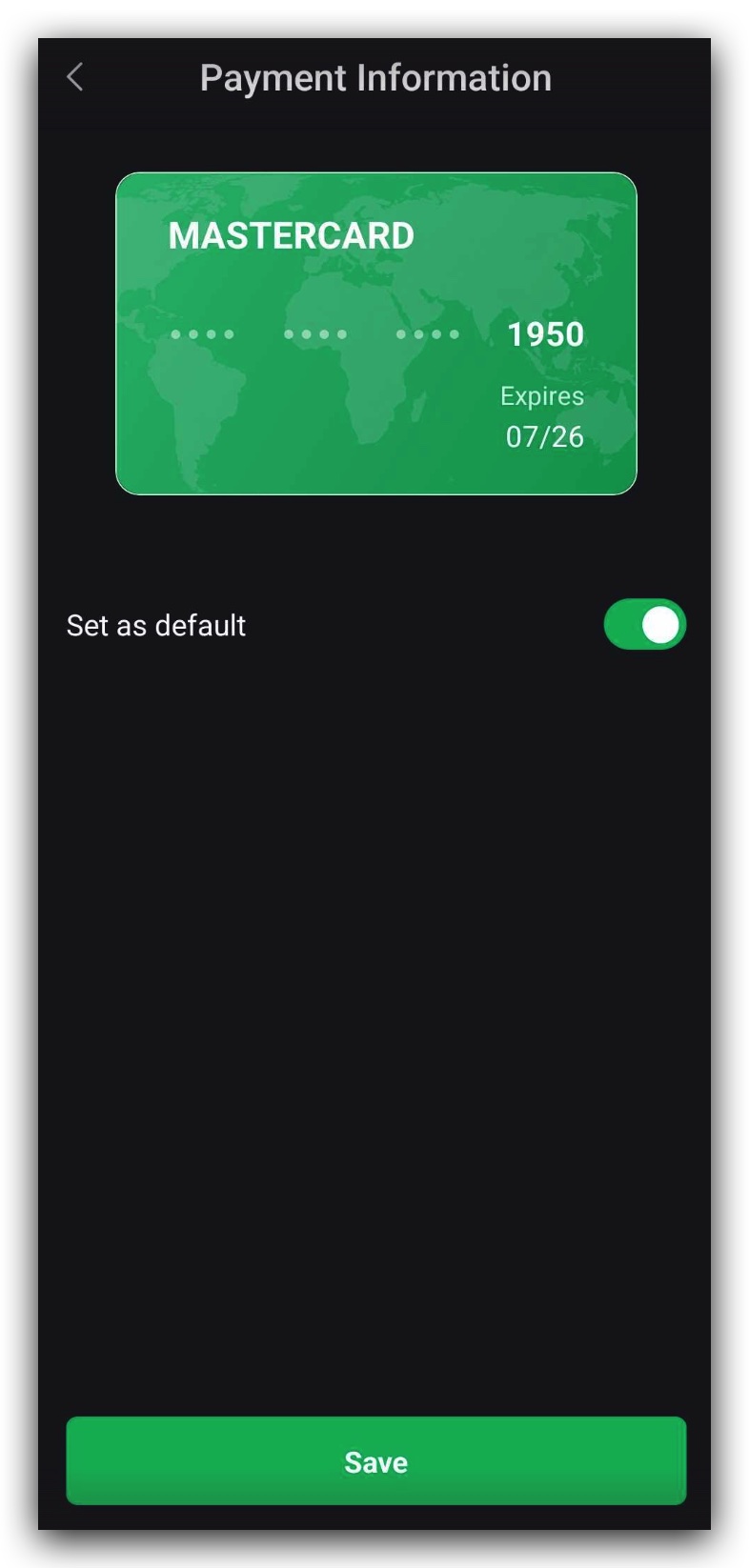
- Select a card and toggle “Set as Default” to make it your primary payment option, shown in Figure 1.6.6.
- Add new cards at any time if your existing card expires or changes.
💡 Without a valid payment method, you won’t be able to access EV charging or visitor parking services.
Electric Vehicle
Manage your registered EV details here, shown in Figure 1.6.7:
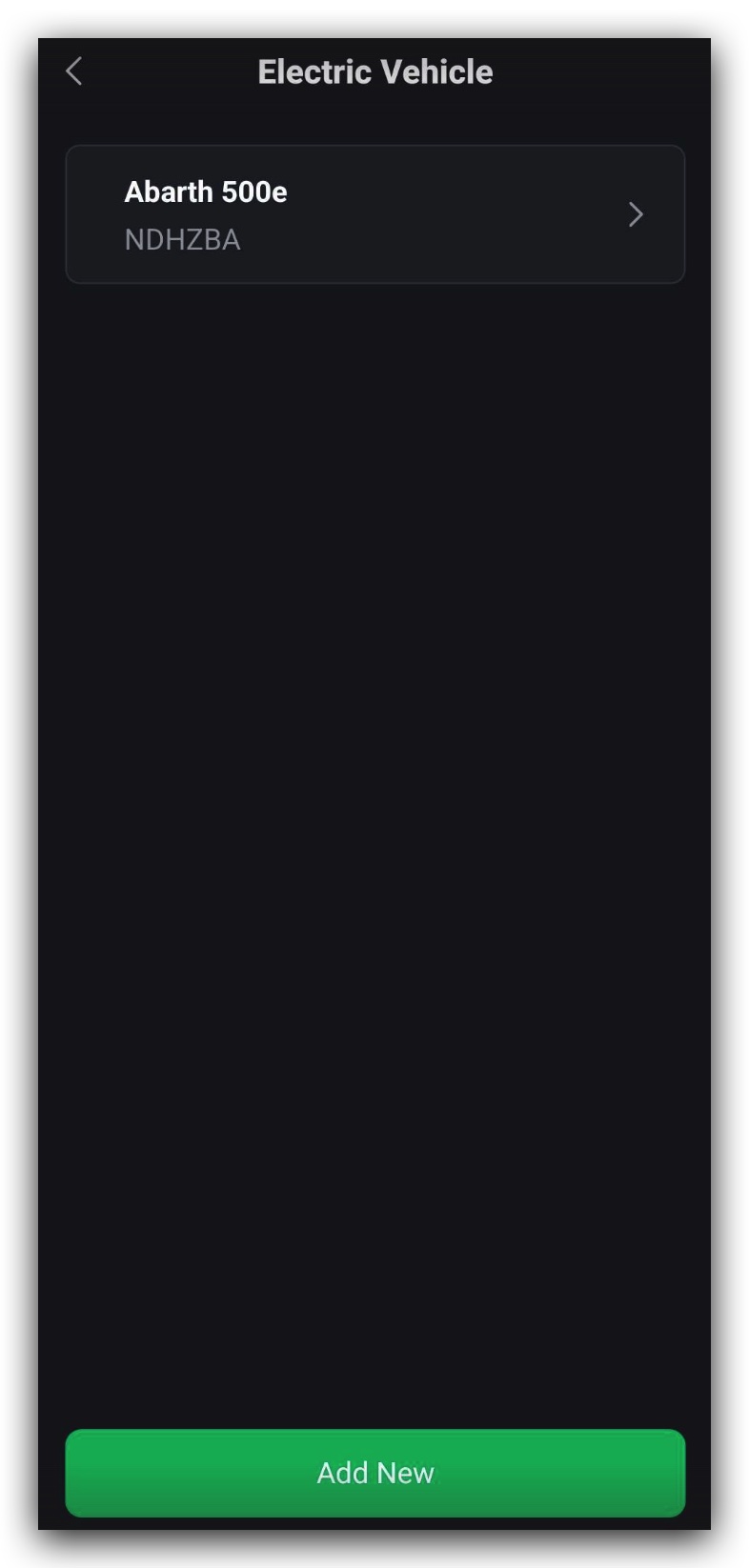
- Add new vehicles by selecting the Electric Vehicle option.
- Edit existing vehicle information as shown in Figure 1.6.8, including:
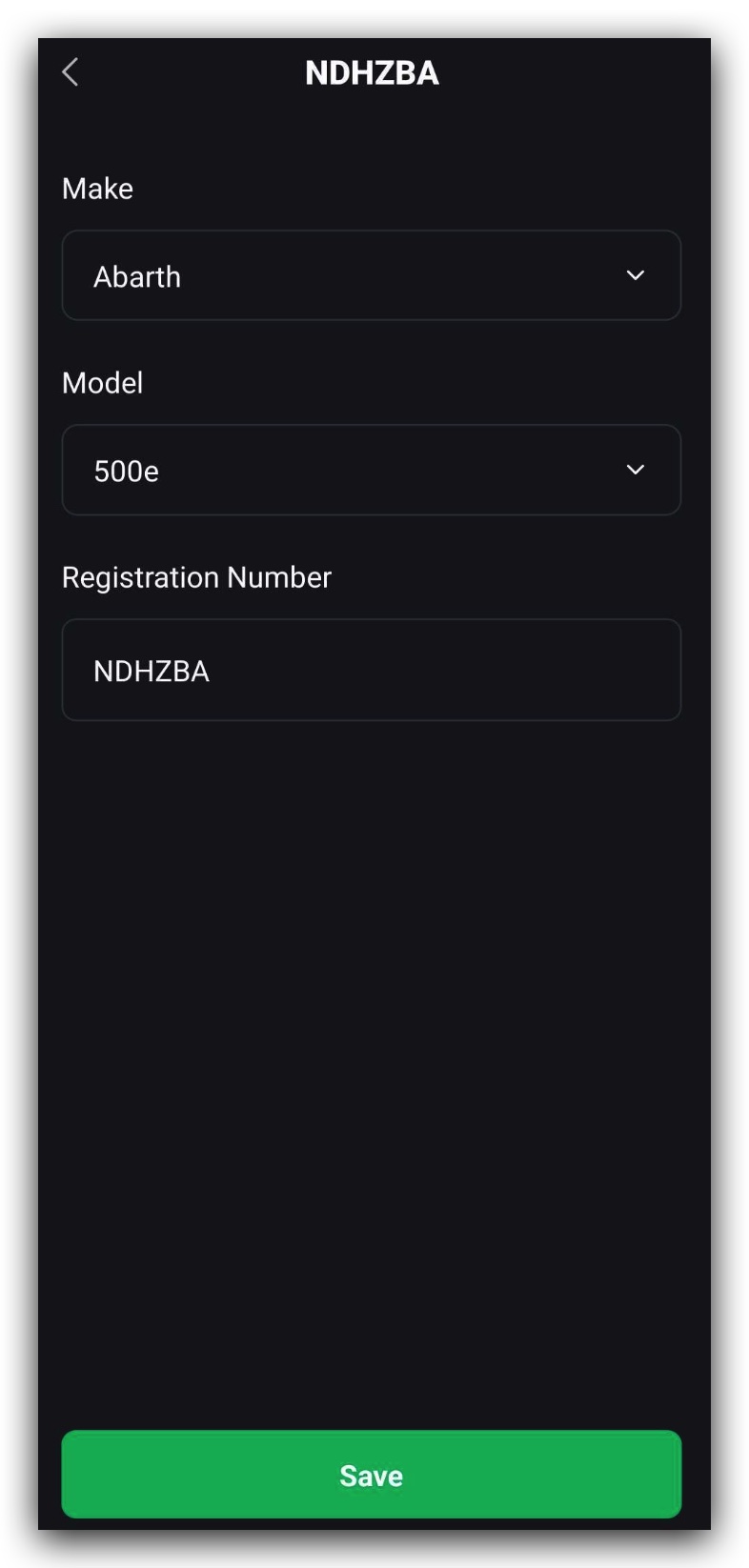
- Make
- Model
- Registration number
✅ Adding multiple EVs is supported, so you can switch between vehicles seamlessly in the app.
Visitor Parking Settings
This section shows the status of your visitor parking allowance, shown in Figure 1.6.9:
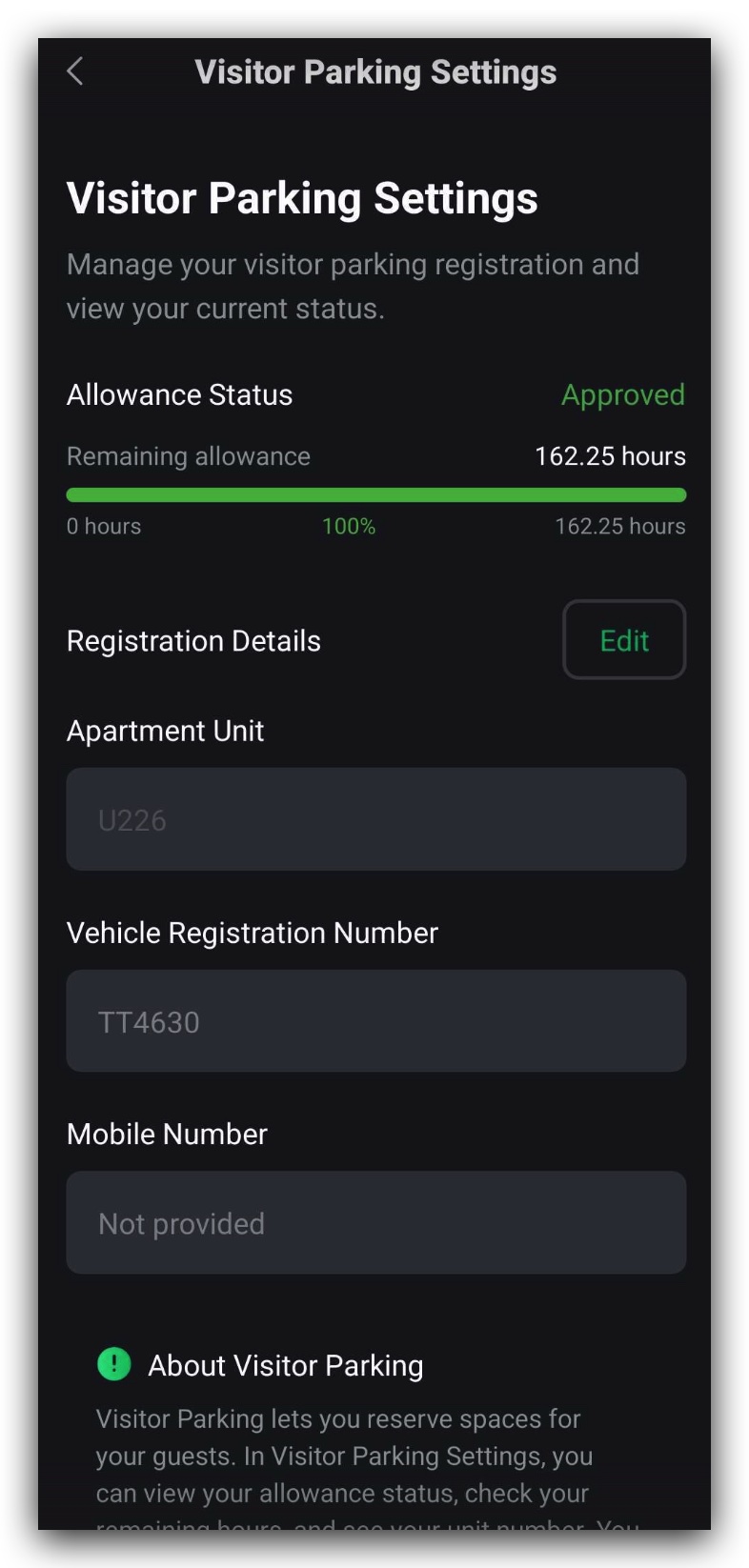
Track your remaining allowance using a progress bar, which shows:
- Regular allowance left
- Extra allowance (if applicable)
- Usage history
View your registration details:
- Apartment unit
- Vehicle registration number
- Mobile number
To make changes:
- Click the Edit button to update your details.
💡 Keeping this information up-to-date ensures smooth access for your visitors.
Settings
The Settings page provides options for account control, shown in Figure 1.6.10:
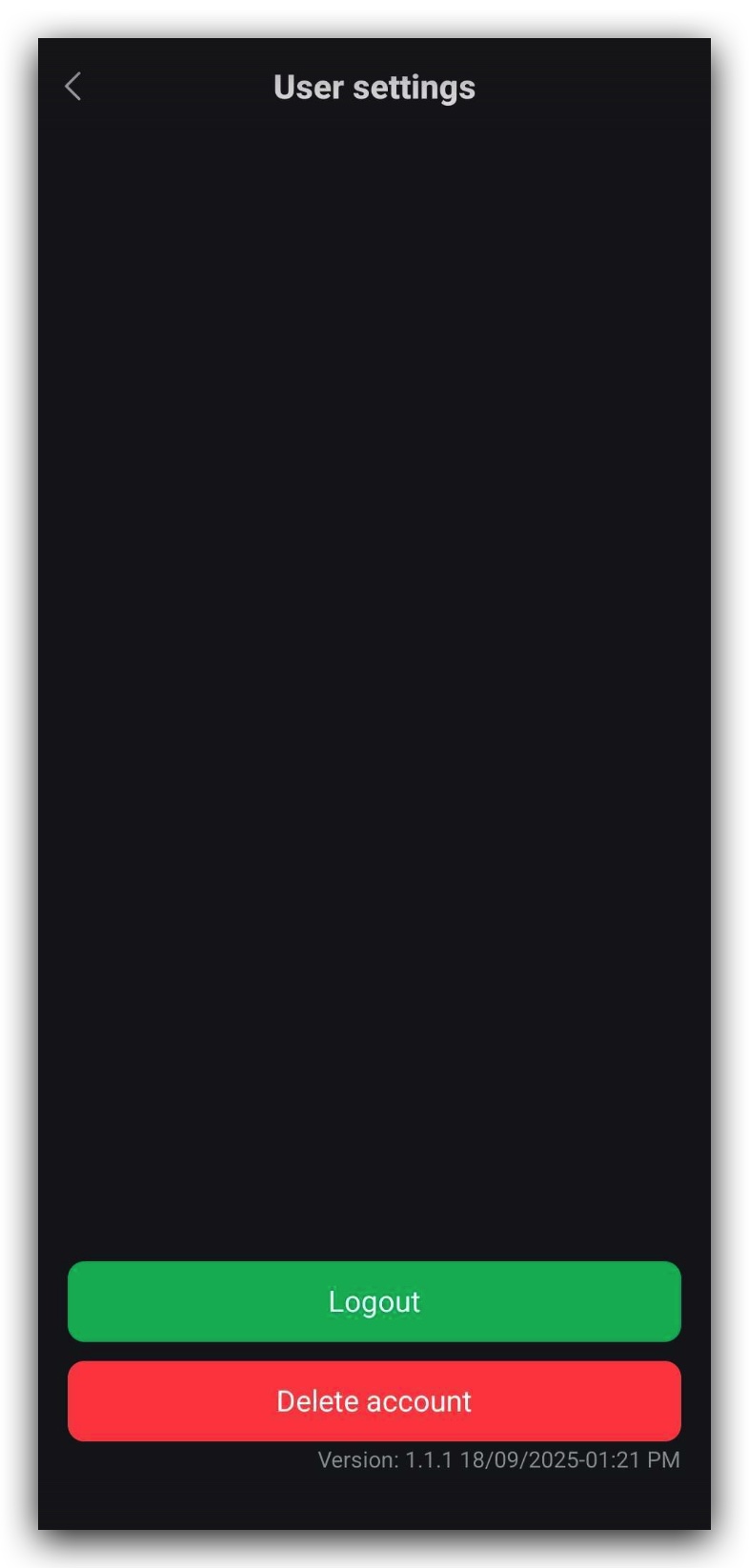
- Log out of your account if you’re switching devices or users.
- Delete your account permanently if you no longer wish to use TerraFuse.
⚠️ Deleting your account is irreversible — all data, saved vehicles, and payment details will be permanently removed.
Customer Support
The Customer Support page gives you direct access to help resources, shown in Figure 1.6.11:
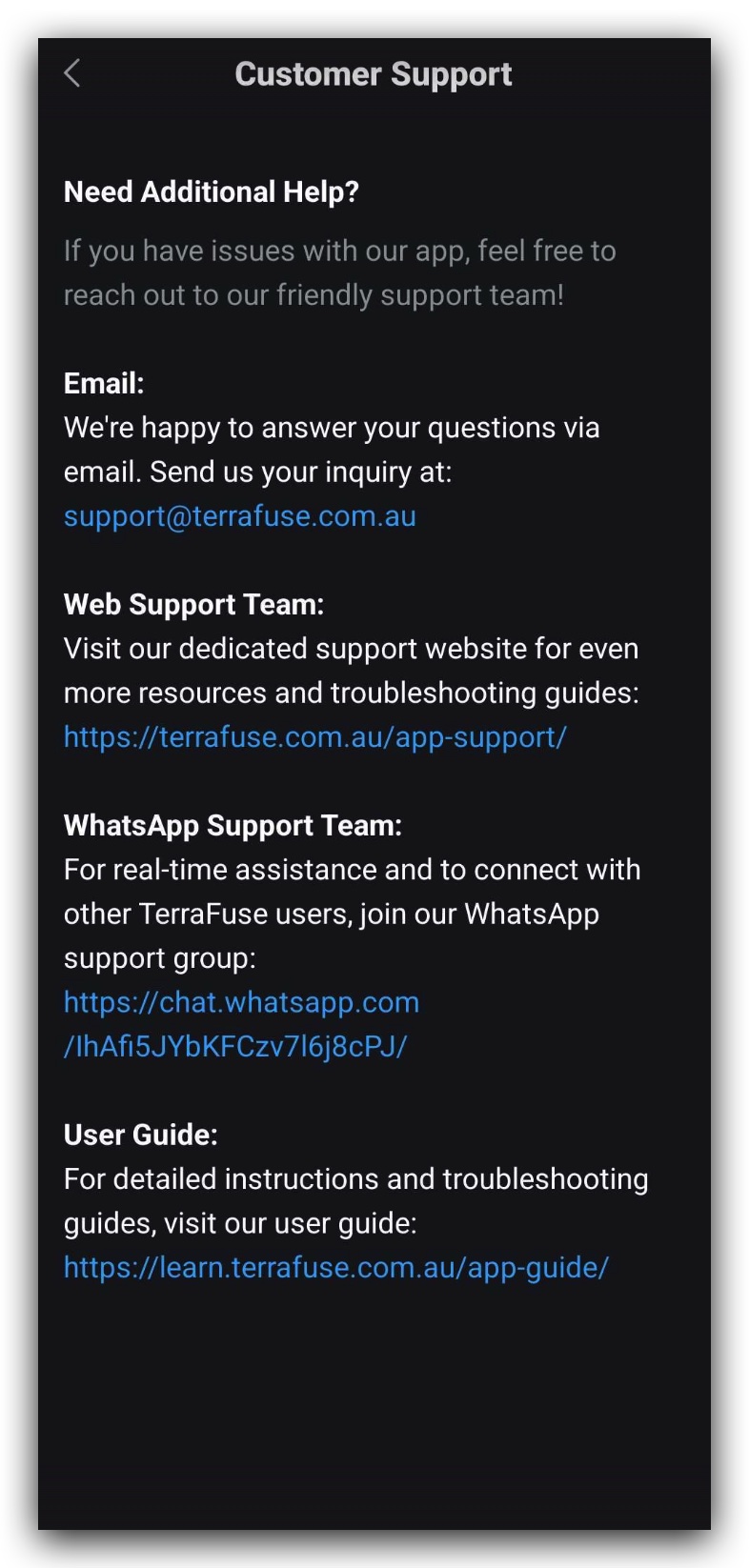
- Contact us via email for inquiries or troubleshooting.
- Access WhatsApp Support for quick issue resolution.
- Visit the User Guide for step-by-step instructions on app features.
💡 Support channels are available to ensure you get assistance whenever you need it.