
Appearance
Viewing Your Charging History
The History page in the TerraFuse App lets you quickly check your past charging sessions and related payment details.
How to Access Your Charging History
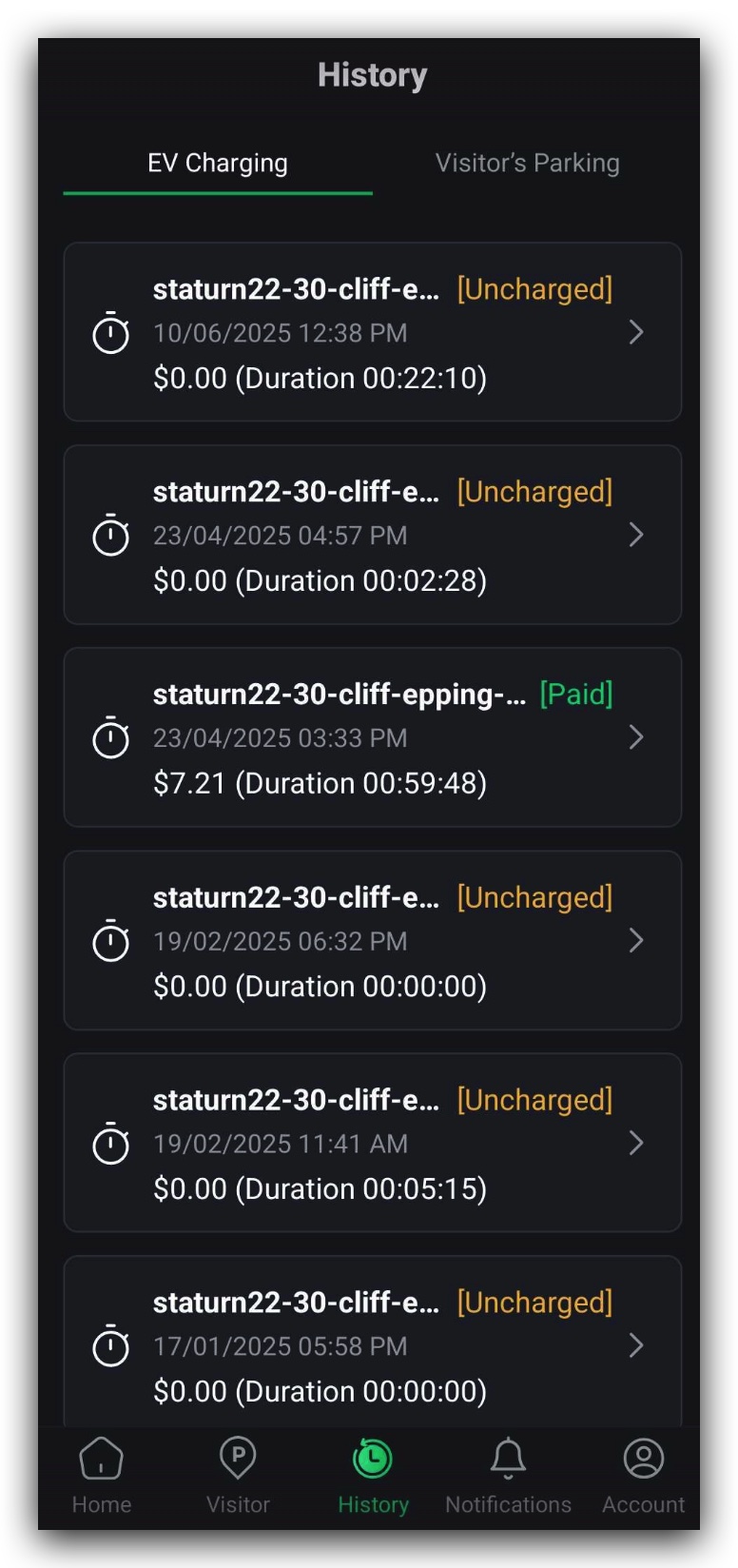
- From the main menu, tap History (Figure 1.5.1).
- Select the EV Charging tab at the top of the screen (Figure 1.5.1).
- Browse your past charging sessions.
- Tap on any row to see full session details.
Session Details You Can View
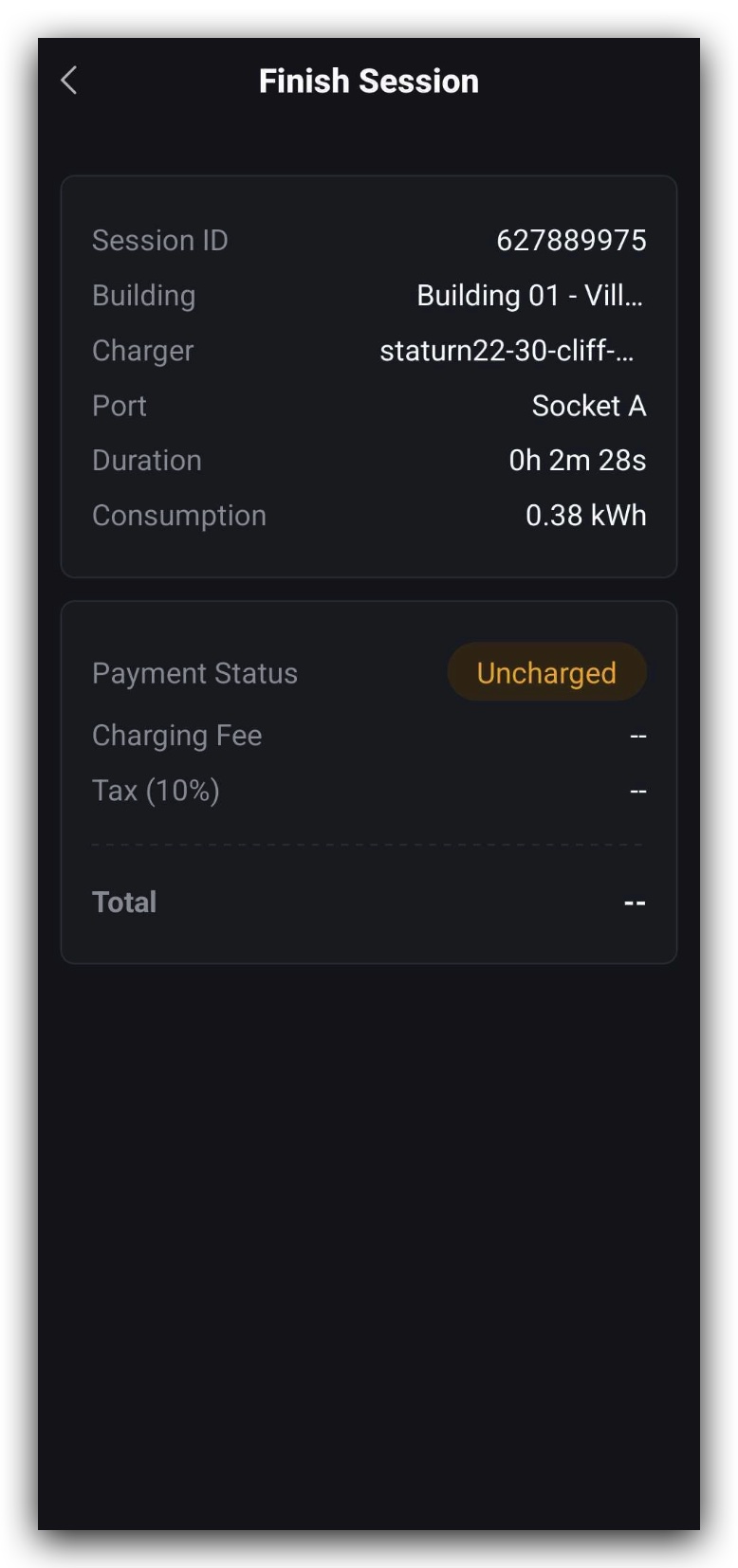
When you open a record, you’ll see the following details (Figure 1.5.2):
- Session ID – Unique code for the charging session
- Building – Location where you charged your EV
- Charger – Charging unit name/ID
- Port – Socket used for charging
- Duration – Total charging time
- Consumption – Electricity used (in kWh)
- Payment Status – Uncharged, Cancelled, or Paid
- Charging Fee – Price per kWh
- Tax – Applicable tax amount
- Total Cost – Final calculated amount
Understanding Payment Status
Payment Status Types
- Uncharged – Power consumption was less than 0.5 kWh, so no payment is taken.
- Cancelled – You cancelled the session; no payment is taken.
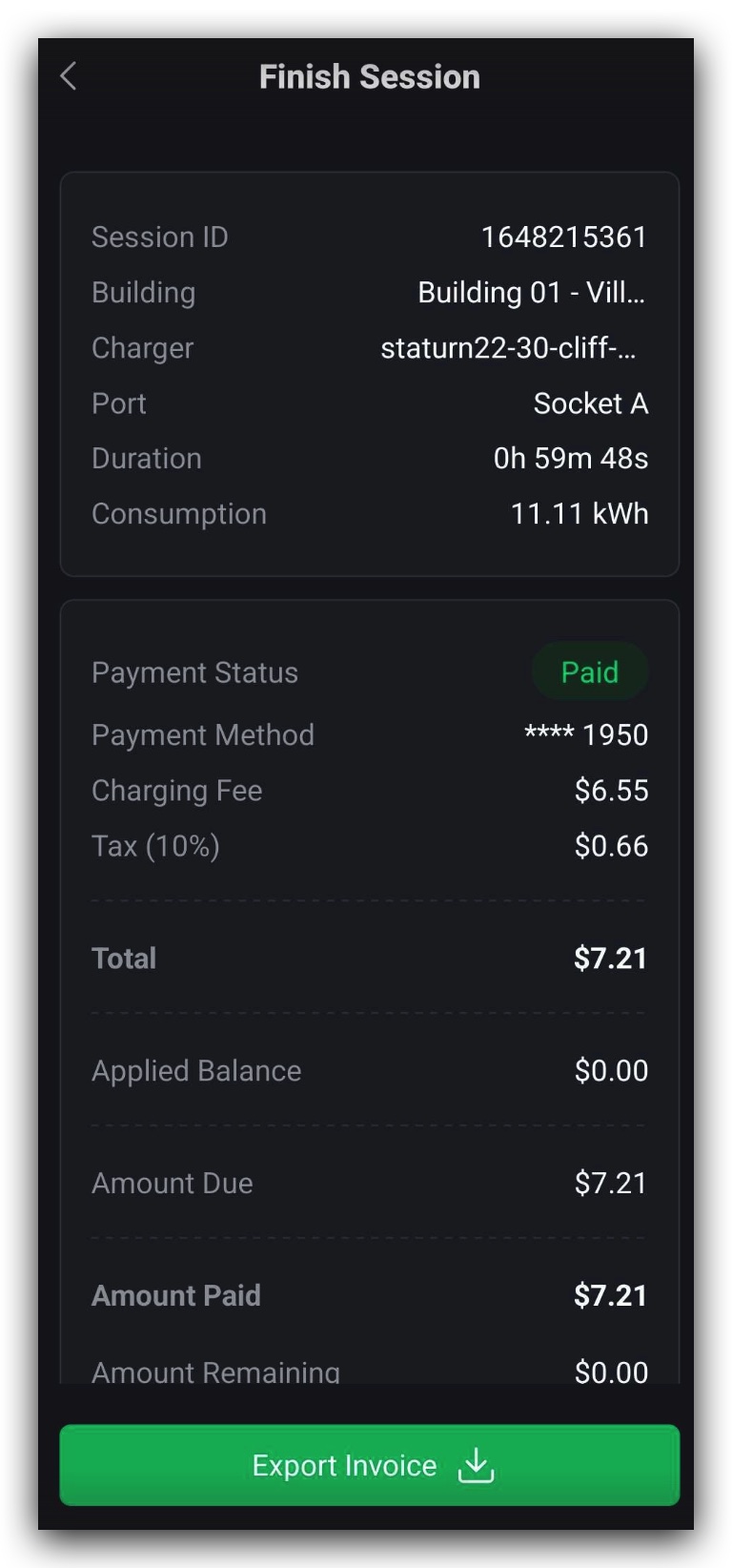
- Paid – Power consumption was 0.5 kWh or more; payment is charged.
For Paid sessions, you’ll also see these additional details (Figure 1.5.3):
- Applied Balance – Account balance used toward the payment
- Amount Due – Amount before payment
- Amount Paid – What you have paid
- Amount Remaining – Unpaid balance (if any)
Exporting an Invoice
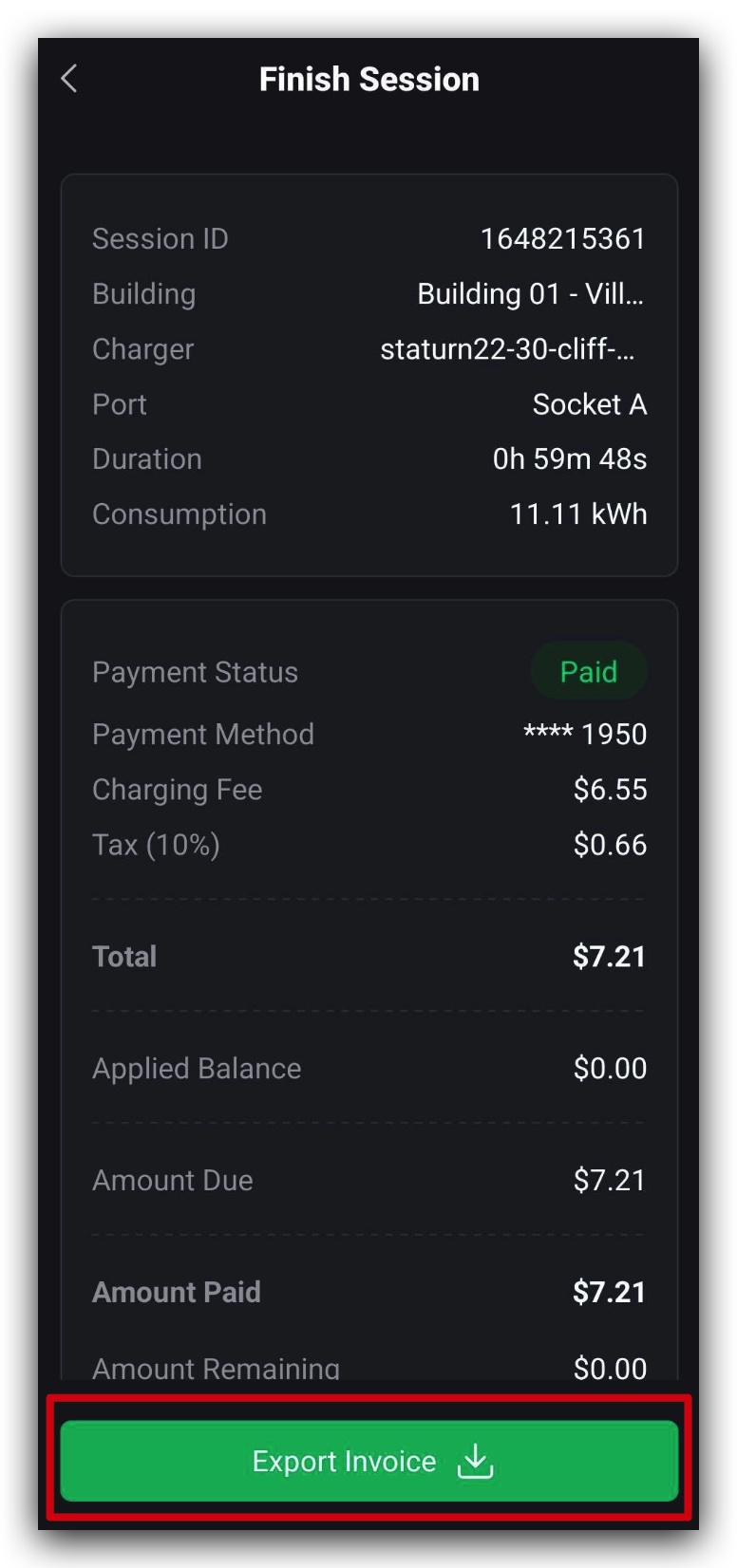
For paid sessions, you can download an invoice:
- Open the charging session record.
- Tap Export Invoice (Figure 1.5.4).
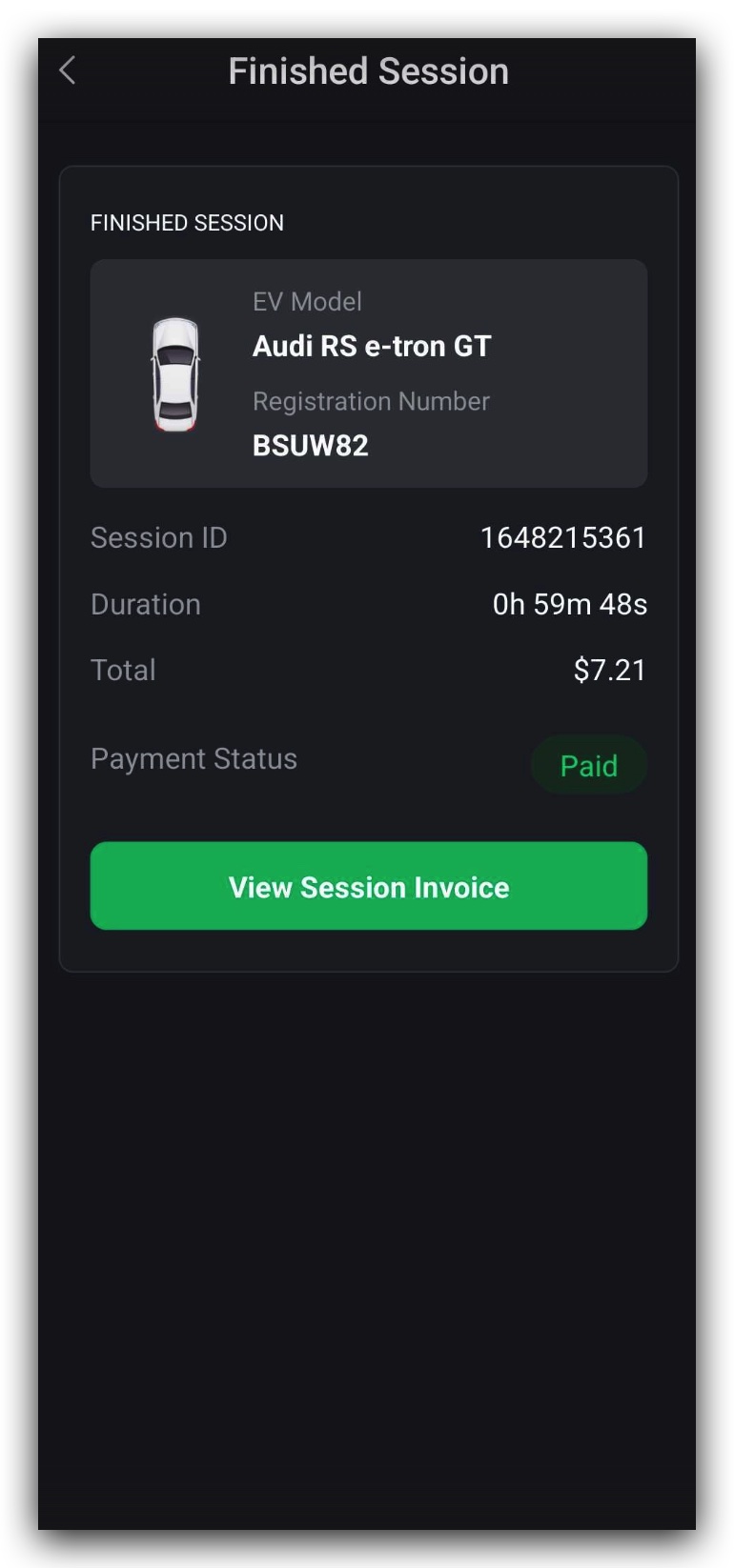
Your invoice will include:
- EV Model
- Registration Number
- Session ID
- Duration
- Total Amount
- Payment Status